12. Close the month and lock your documents
12.1 What locking means in EZer
Section titled “12.1 What locking means in EZer”Locking in EZer sends no file to anyone. Your accountant opens the same data in EZer. What you do is tell EZer which documents or which month are ready, and EZer locks them so the figures do not change under your accountant.
EZer is not accounting software and does not file taxes for you. The ล็อกเอกสารนี้ and ปิดงวดและล็อกเอกสาร buttons only mark a record as locked. They send nothing to the Revenue Department and no message to your accountant.
This chapter calls the press on a single document ล็อก (the full button is ล็อกเอกสารนี้), and the one press for a whole month ปิดงวด (the button ปิดงวดและล็อกเอกสาร).
12.2 Invite your accountant as an auditor
Section titled “12.2 Invite your accountant as an auditor”Invite your accountant with the role ผู้สอบบัญชี (auditor). This role sees only issued documents, never drafts. It needs no package. It can press ล็อกเอกสารนี้ and ปลดล็อก, but it cannot edit documents or close a month.
How to invite and pick a role is in the chapter on splitting a job with your team. The read-only viewer role can also look at the data, but it sees drafts and cannot lock or unlock.
Splitting a job with your team
12.3 Check the document register before closing
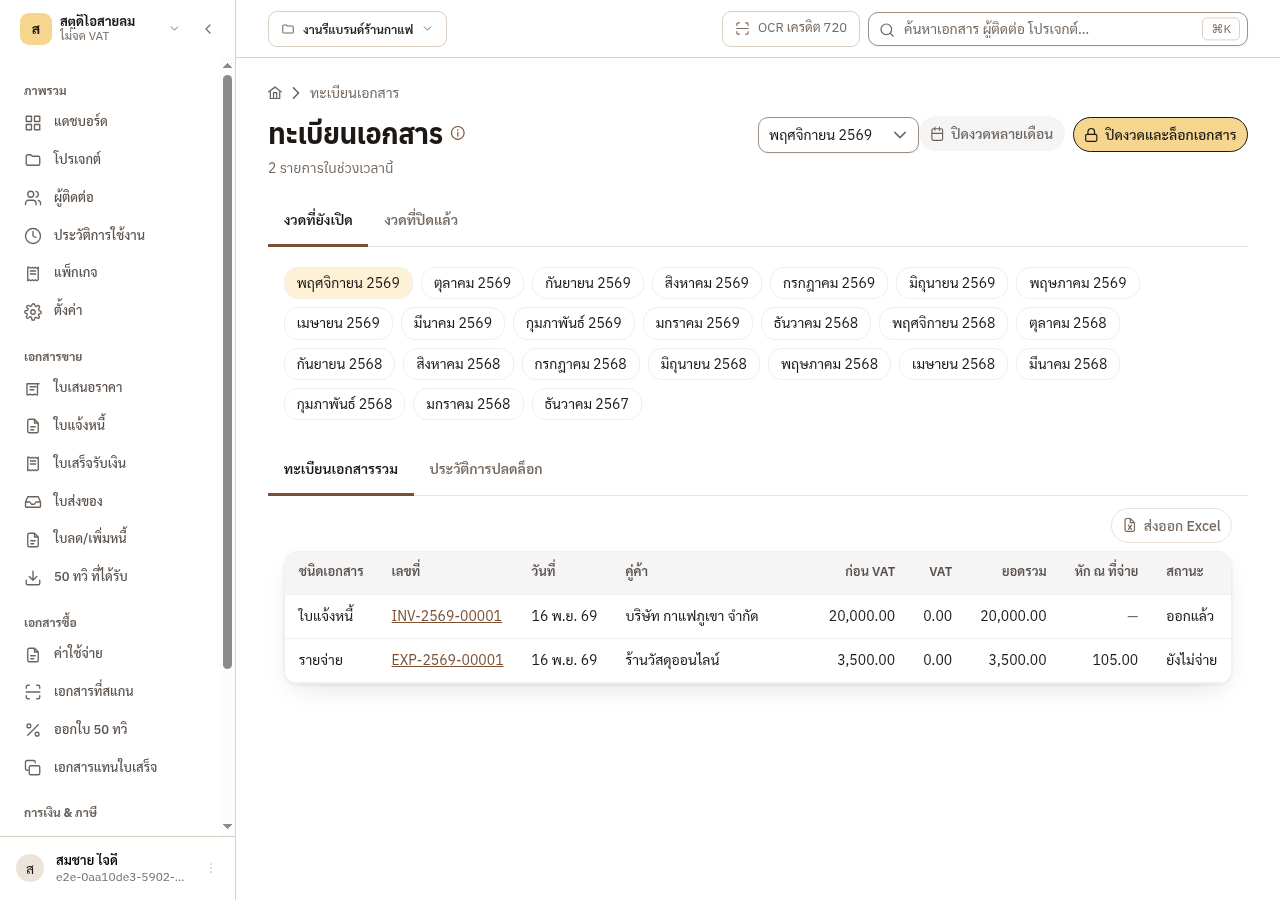
Section titled “12.3 Check the document register before closing”The document register (ทะเบียนเอกสาร) puts sales documents and expenses in one table. Look at it before you close the month for anything left over or odd.
-
Open the ทะเบียนเอกสาร page and look at the ทะเบียนเอกสารรวม tab.
-
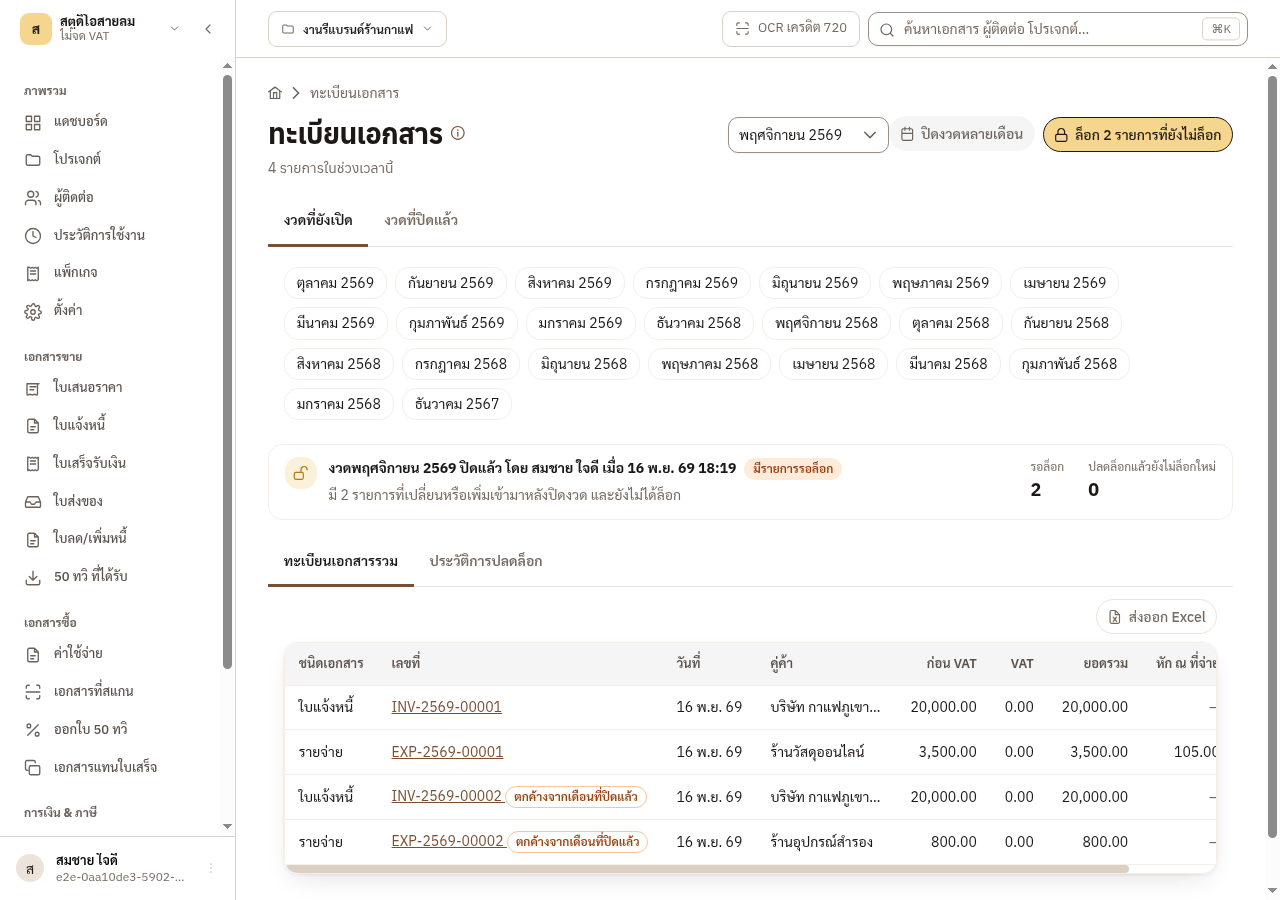
Look for the ตกค้างจากเดือนที่ปิดแล้ว badge. It marks a document dated in an already closed month that has not been locked.
12.4 Lock one document at a time
Section titled “12.4 Lock one document at a time”To lock some documents before the month ends, open the document and press ล็อกเอกสารนี้. EZer asks you to confirm and locks that document at once. The main administrator, the manager and the auditor can press it. A quotation and a delivery note have no such button, though the month close still locks them.
Issue your first sales document
12.5 Close the month
Section titled “12.5 Close the month”Closing the month locks the whole month’s documents in one go. EZer locks every record of that month, in every project, at once. The main administrator (ผู้ดูแลหลัก) and the manager can close. If the month holds records in a project you may not see, EZer refuses. Someone who can see every project must close it.
-
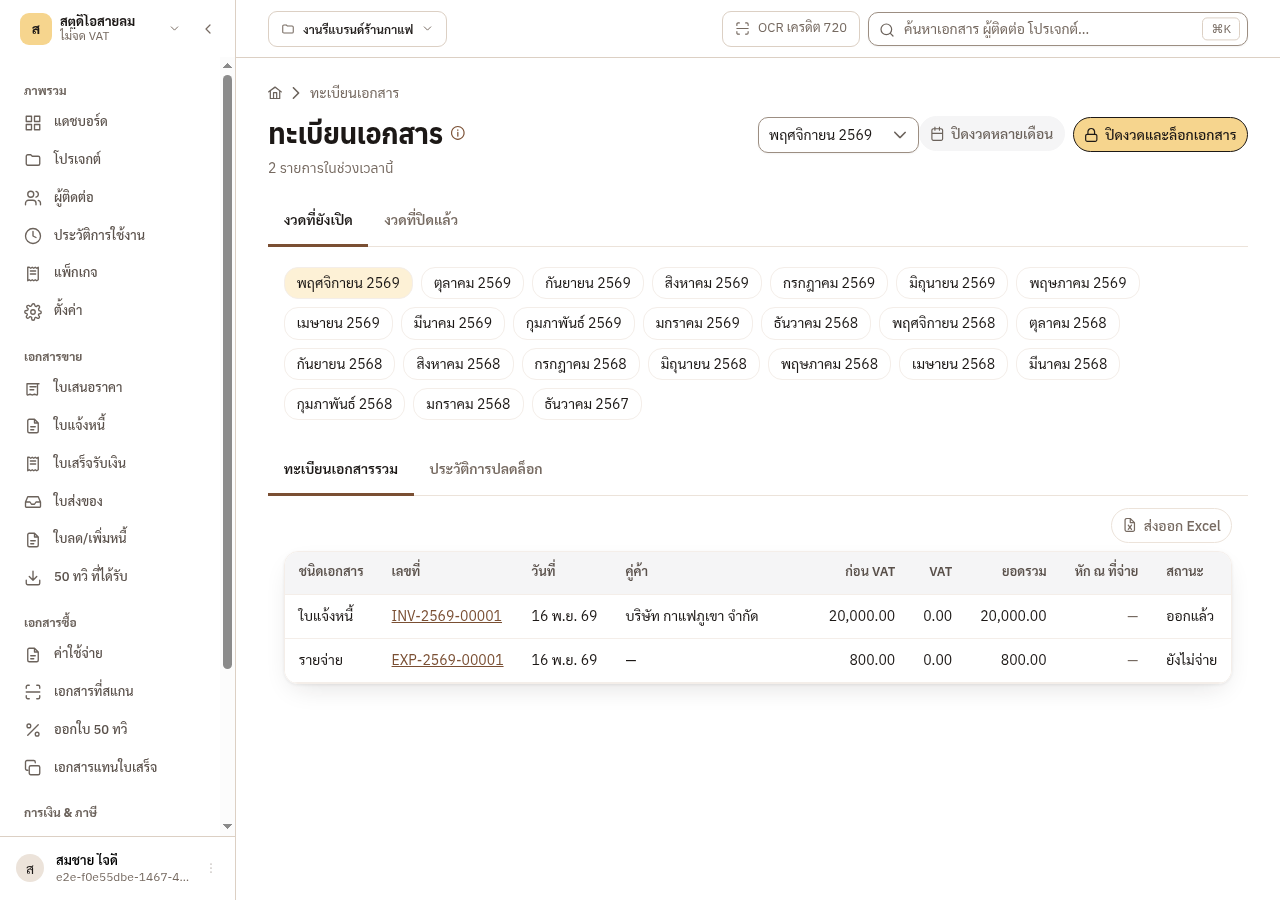
On the ทะเบียนเอกสาร page, pick the month to close and press ปิดงวดและล็อกเอกสาร.
→ You should see: To close several months together, use the ปิดงวดหลายเดือน button.
-
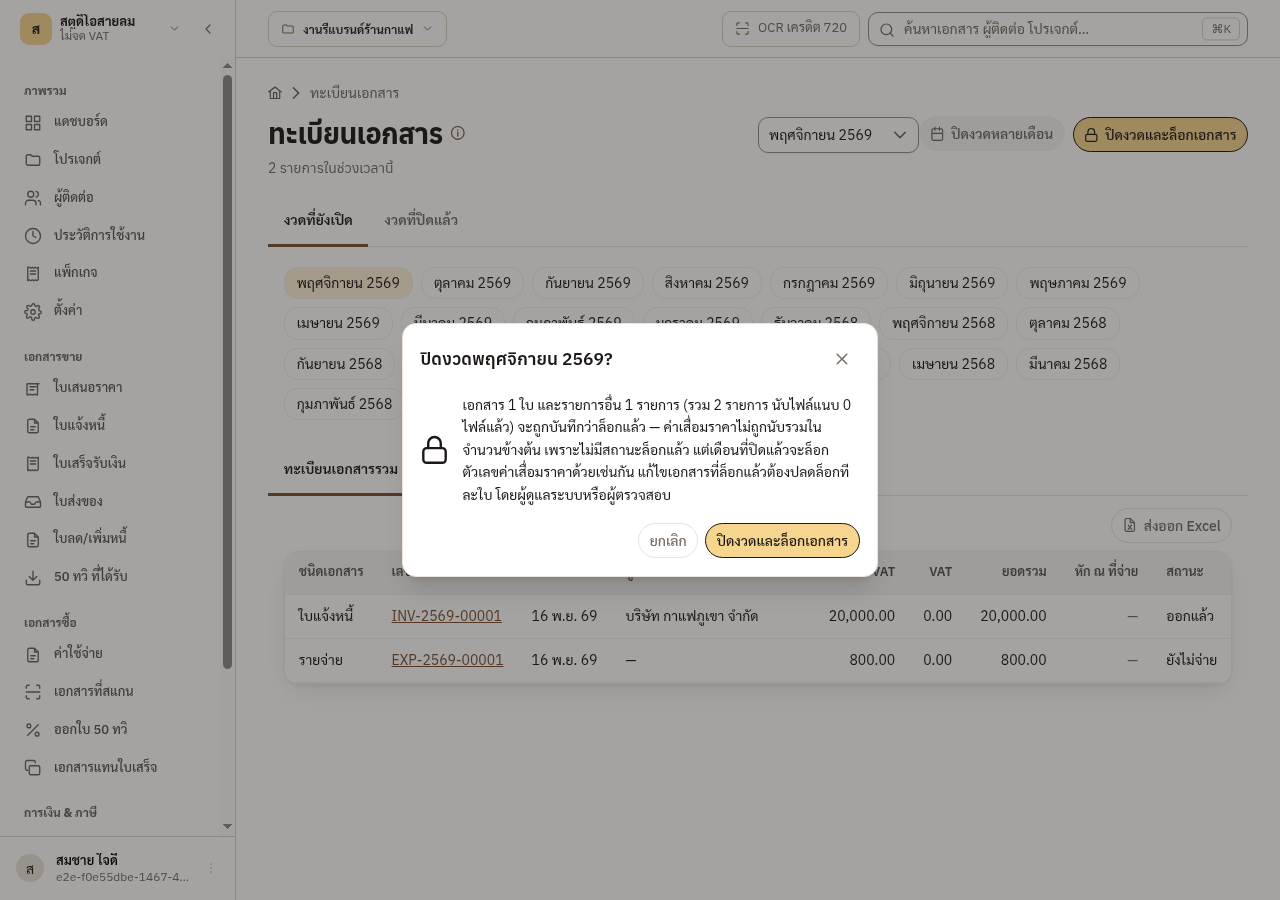
Read the confirmation. It counts the documents, other records and attached files that will be locked. If it is right, press ปิดงวดและล็อกเอกสาร.
-
The register shows a banner saying the month is closed, by whom and when.
→ You should see: After the close, the button becomes ล็อก N รายการที่ยังไม่ล็อก. It locks only the records not yet locked and leaves the locked ones alone.
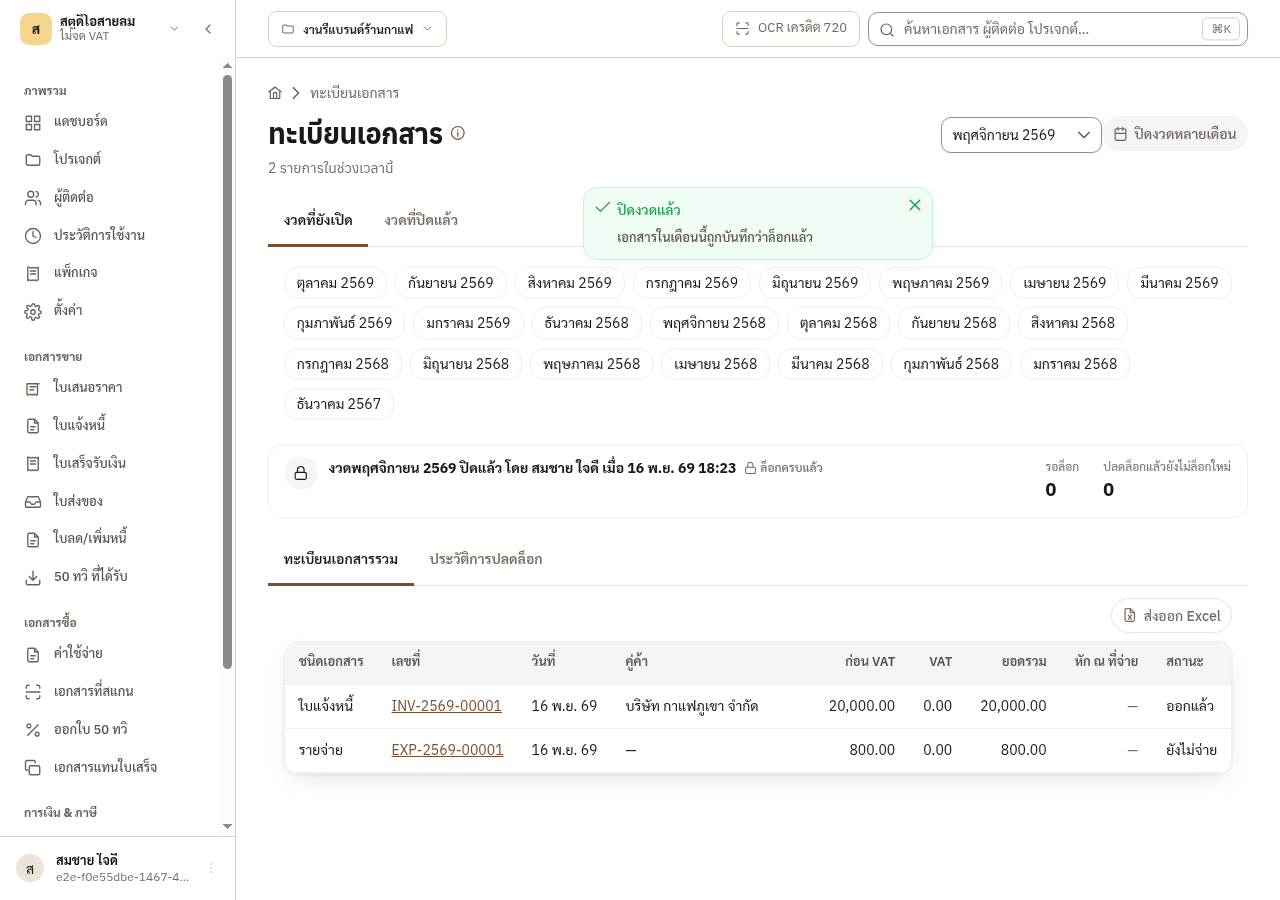
The close covers every kind of sales document, expenses, withholding-tax certificates issued and received, payment vouchers, receipt substitutes, uploaded files and other records. Depreciation is not counted among the locked records, but a closed month freezes its figures.
12.6 A locked document
Section titled “12.6 A locked document”-
Open a locked invoice. The แก้ไข button is gone, and a message says the document is locked, with an ปลดล็อก button for people who may use it.
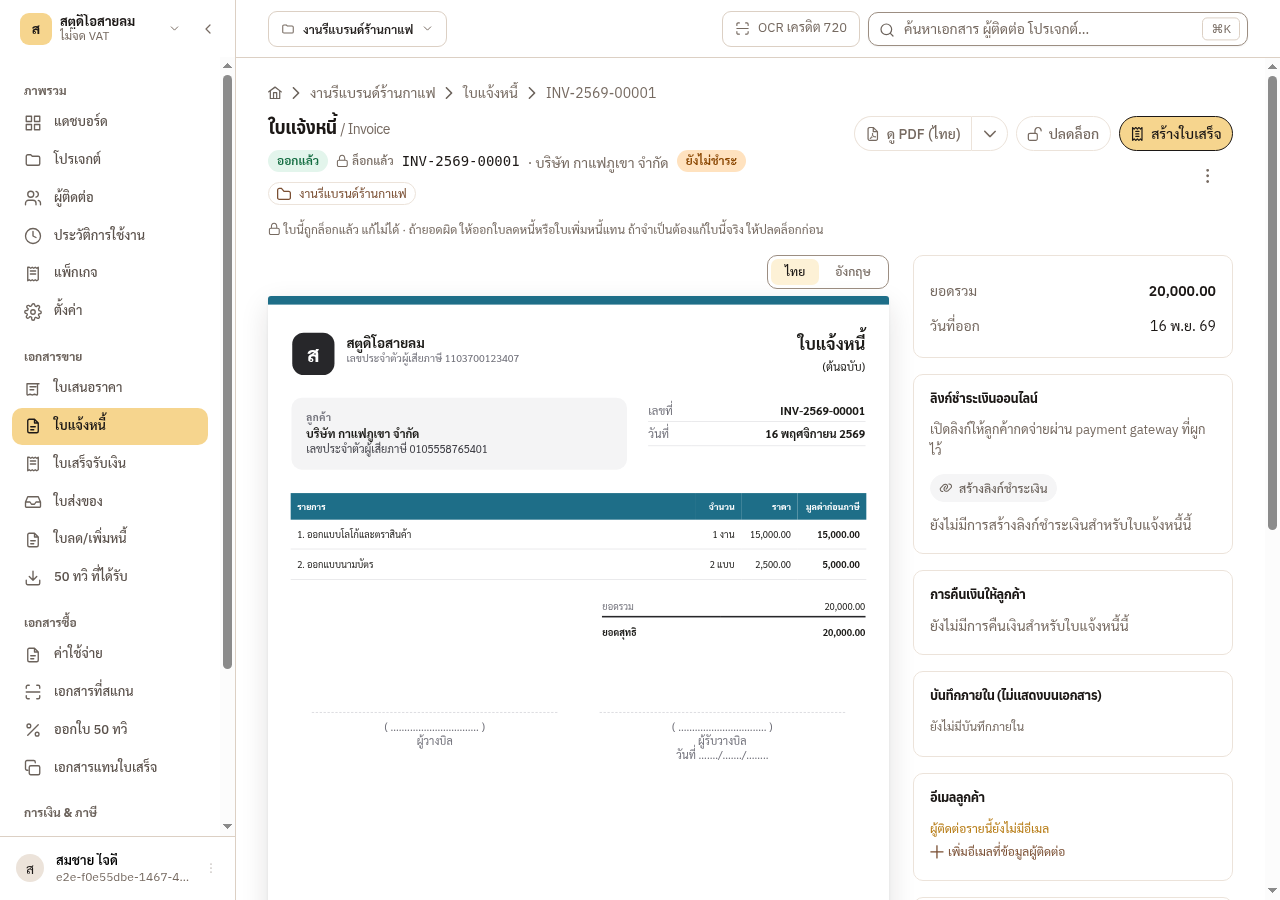
A locked document
- cannot be edited at all. EZer refuses the edit on the server, not merely by hiding the button.
- If an amount is wrong, issue a credit note or a debit note instead of editing the original.
- People who may not unlock see no ปลดล็อก button and must ask the manager or the auditor. The app’s message calls them the administrator or the inspector (ผู้ดูแลระบบหรือผู้ตรวจสอบ).
12.7 Unlock and lock again
Section titled “12.7 Unlock and lock again”If you really must change a locked document, the main administrator, the manager or the auditor can press ปลดล็อก on it. It stays editable until it is locked again. Every unlock is recorded with who and when.
When you finish, there are three ways to lock it again: press ล็อกเอกสารนี้ on the document, press ล็อกกลับโดยไม่แก้ in the unlock history, or press ล็อก … รายการที่ยังไม่ล็อก on the register to lock everything left (this whole-month button is only for people who may close a month).
-
On the ประวัติการปลดล็อก tab, click the document’s row. A table compares the figures at the close with the figures after the edit, so you and your accountant see what changed.
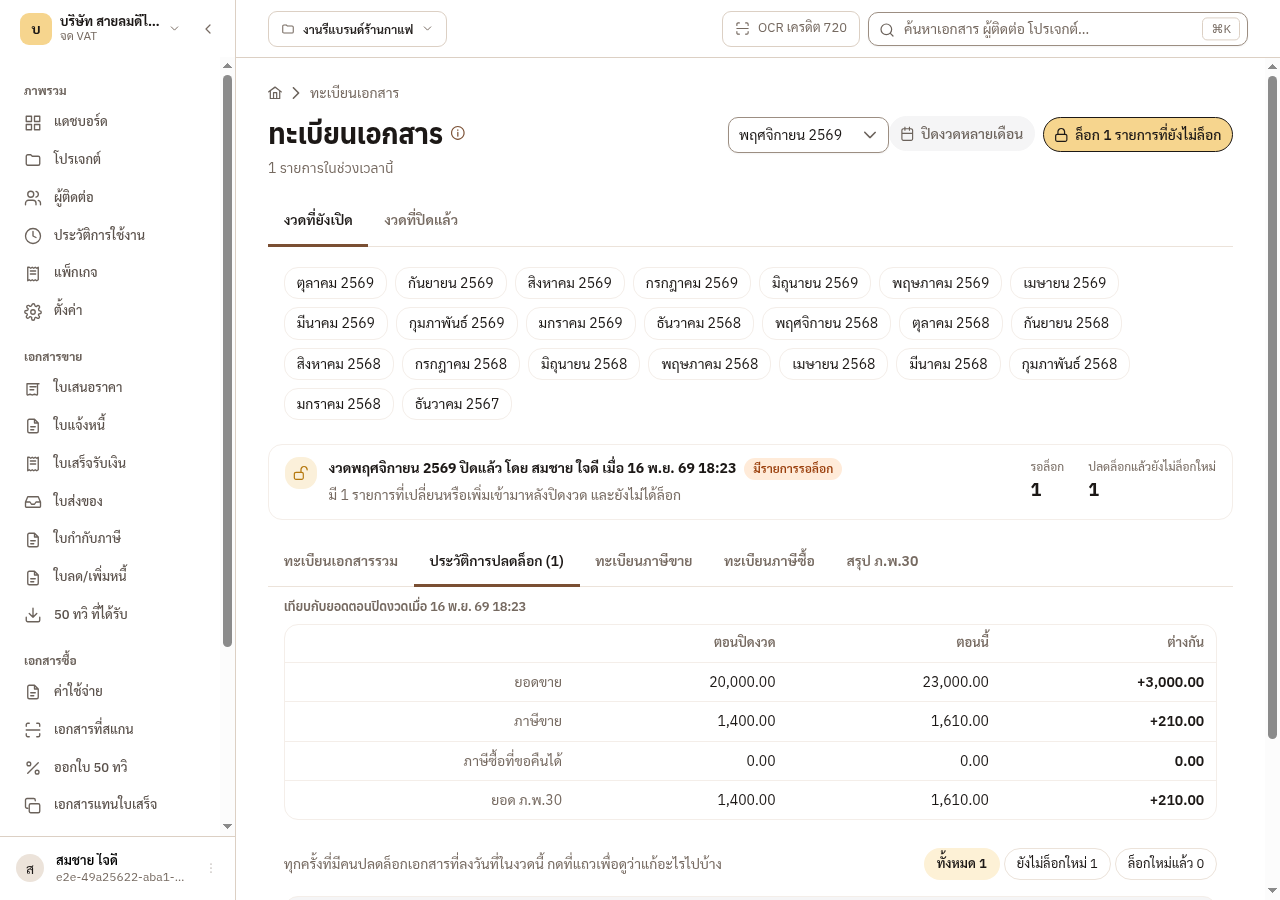
-
A document changed or added after the close shows the ตกค้างจากเดือนที่ปิดแล้ว badge in lists, and its page says the same.
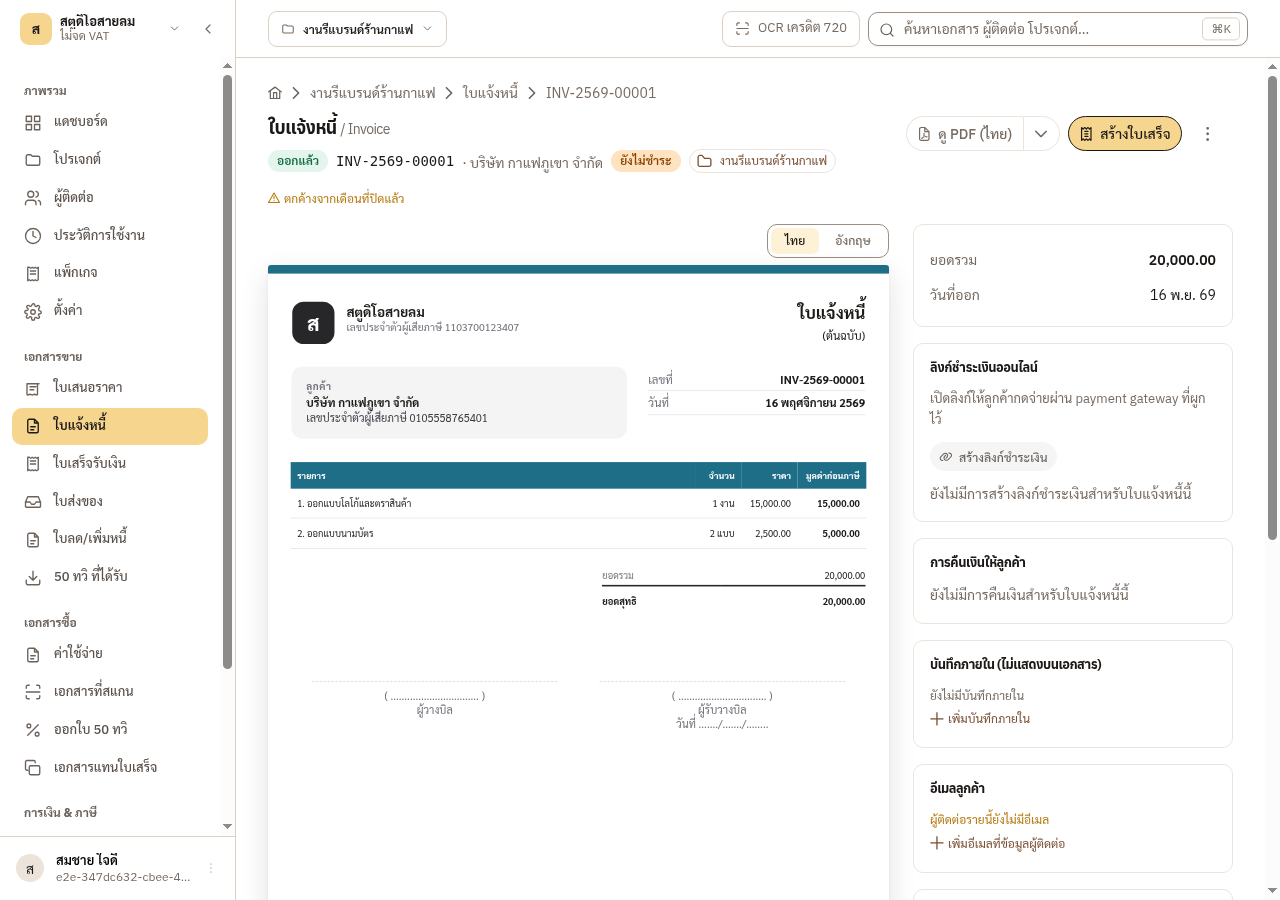
A document dated back into a closed month saves normally but is not locked until you lock it. The form shows a notice before you save. A tax invoice dated back moves the month in which output VAT falls due, so ask your accountant first.
12.8 Files your accountant can use
Section titled “12.8 Files your accountant can use”EZer exports Excel files with the ส่งออก Excel button: the document register, the output VAT register, the input VAT register and the ภ.พ.30 summary, plus the profit and loss report and the list for each document kind. EZer produces no file for filing taxes.
-
Open the สรุป ภ.พ.30 tab to see the month’s output VAT netted against input VAT.
→ You should see: These figures are a starting point for the bookkeeper, not a tax return. Check them against the original documents before filing.
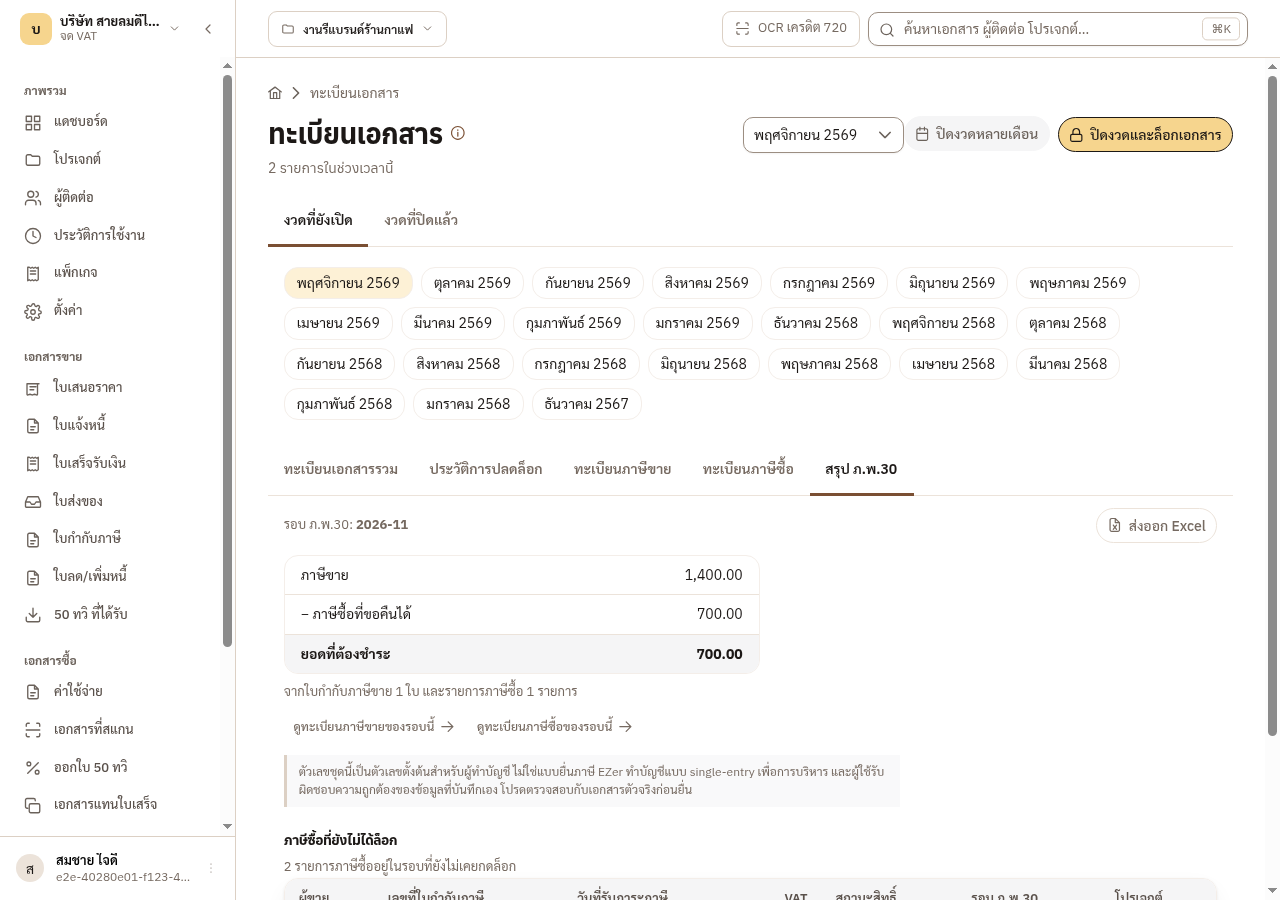
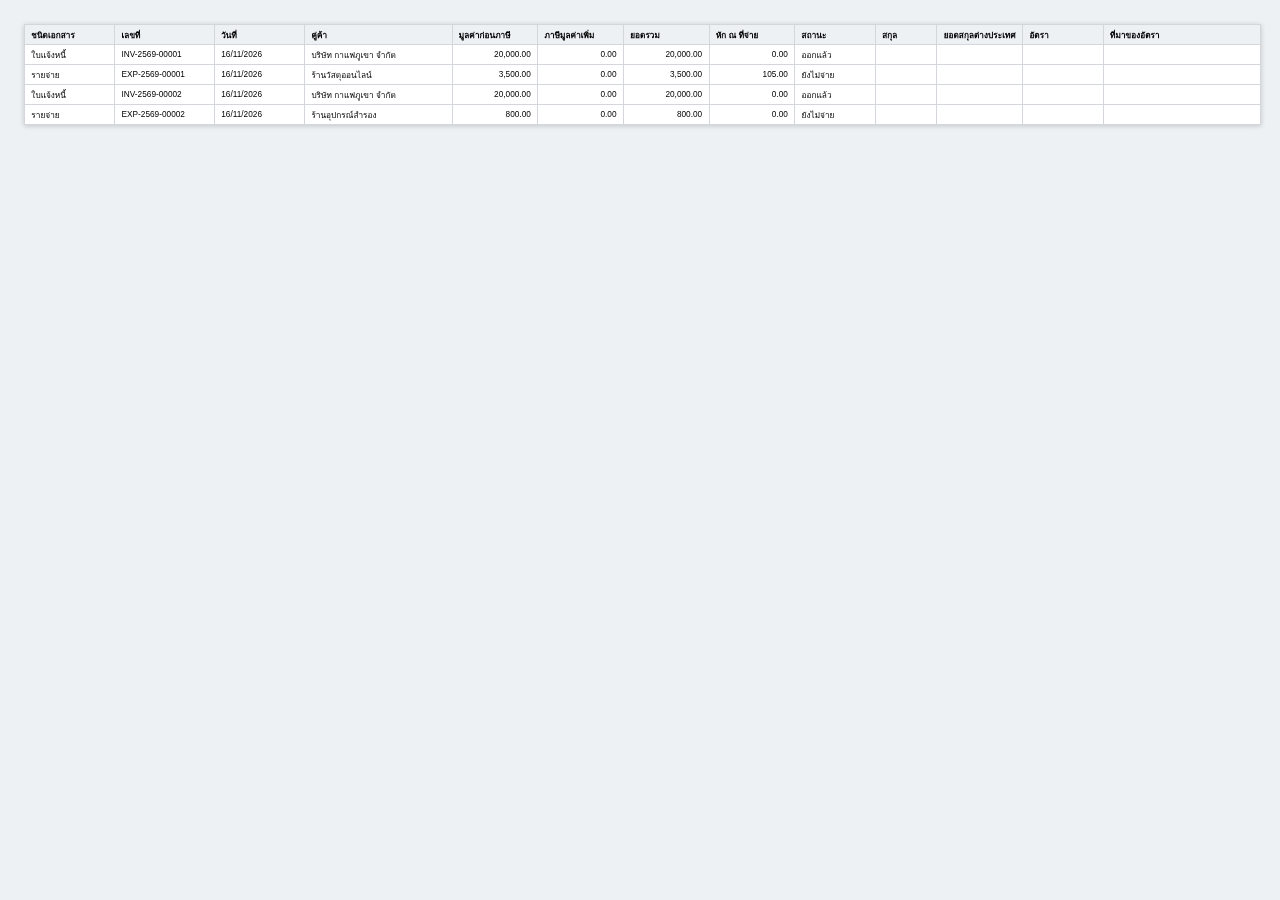
Figure 12-1: The register’s Excel file, ready to pass to your accountant.