9. Accept online payments through a payment gateway
9.1 How it works
Section titled “9.1 How it works”A payment gateway is a service that takes payments online, for example by card or PromptPay. You use your own business’s gateway account, so the money your customer pays goes straight into your account. EZer does not hold the money for you.
The whole process has five steps
- A manager connects the gateway account in Settings. You do this once.
- On an issued invoice, you create a payment link and send it to the customer.
- The customer opens the link and goes to the gateway’s payment page. The customer does not need an EZer account.
- The gateway tells EZer about the payment, and EZer then asks the gateway for the real status.
- EZer issues the receipt, and the invoice changes to ชำระแล้ว (paid).
9.2 Who can do what
Section titled “9.2 Who can do what”| Task | Who can do it |
|---|---|
| Connect, edit, set as default or remove a gateway | The Super Admin (ผู้ดูแลหลัก) and managers (ผู้จัดการ), signed in to the app. An API key cannot do this. |
| Create or cancel a payment link | Anyone who can edit sales documents, such as managers, document clerks (ธุรการเอกสาร) and sales (ฝ่ายขาย), and an API key with write access. |
| See the status of payment links | Anyone who can see issued invoices, including viewers and auditors. |
An API key cannot connect a gateway so that a leaked key cannot send your business’s money to another account.
9.3 Prepare the Secret Key for each gateway
Section titled “9.3 Prepare the Secret Key for each gateway”Before you connect, open the gateway’s dashboard and copy the Secret Key. The connect dialog has a link to each gateway’s key page. The key must match the mode you choose: Test mode takes a test key, and Live mode takes a live key.
| Gateway | Secret Key it accepts | Signing secret | Amount per payment |
|---|---|---|---|
| Stripe | A restricted key only, starting with rk_test_ or rk_live_, with the Checkout Sessions: Write permission. An sk_ key is refused. | Starts with whsec_ | 10 to 999,999.99 baht |
| Opn Payments (Omise) | A Secret Key, starting with skey_test_ for Test mode or skey_ for Live mode. | A base64 string from the Webhooks page of the Omise dashboard. | At least 20 baht |
| K Payment Gateway (KBank) | A Secret Key, starting with skey_test_ for the sandbox or skey_ for live. | Not needed. The bank checks the webhook with this connection’s Secret Key. | Up to 9,999,999.99 baht |
9.4 Connect a gateway
Section titled “9.4 Connect a gateway”-
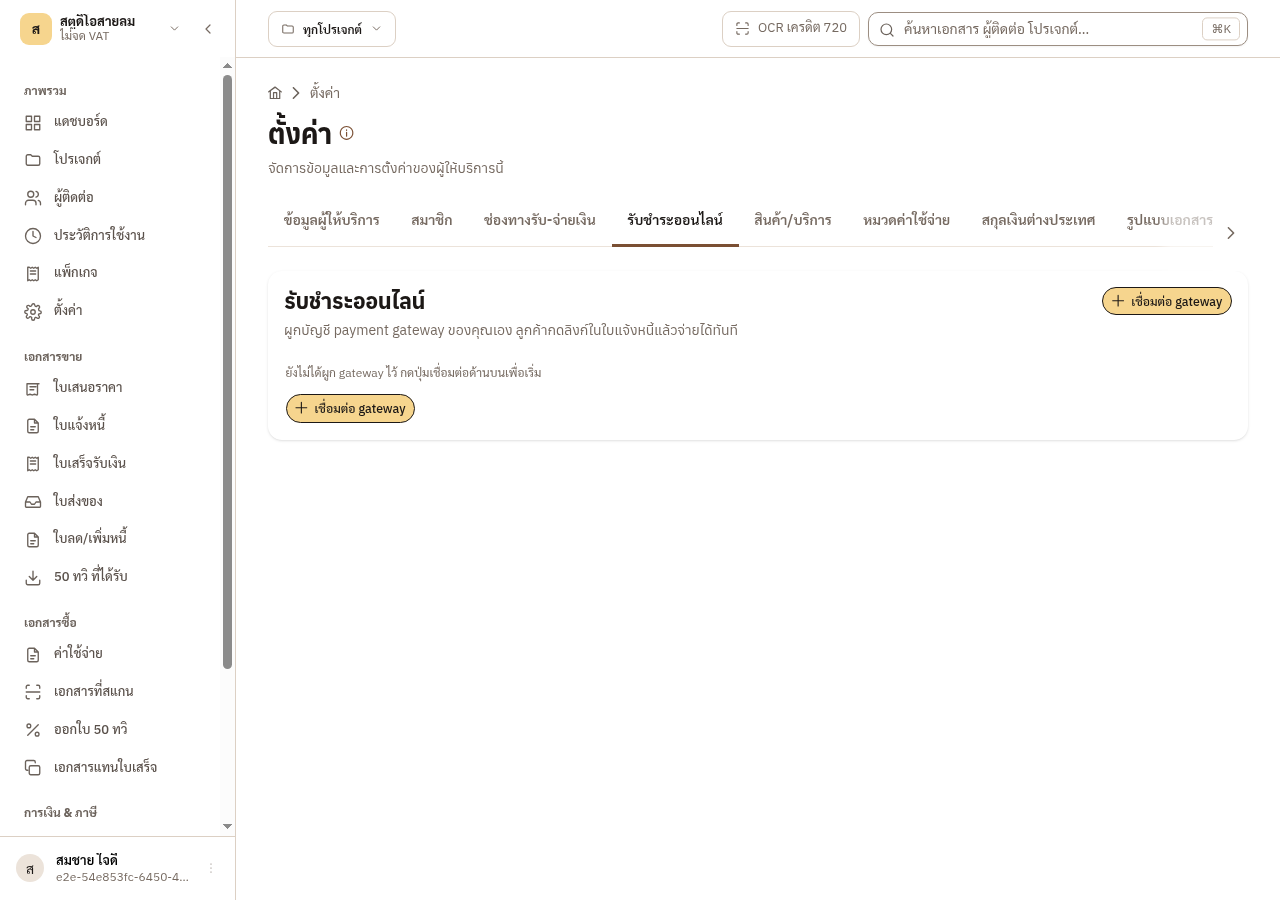
Go to ตั้งค่า (Settings) and open the รับชำระออนไลน์ (online payments) tab. If nothing is connected yet, press เชื่อมต่อ gateway.
-
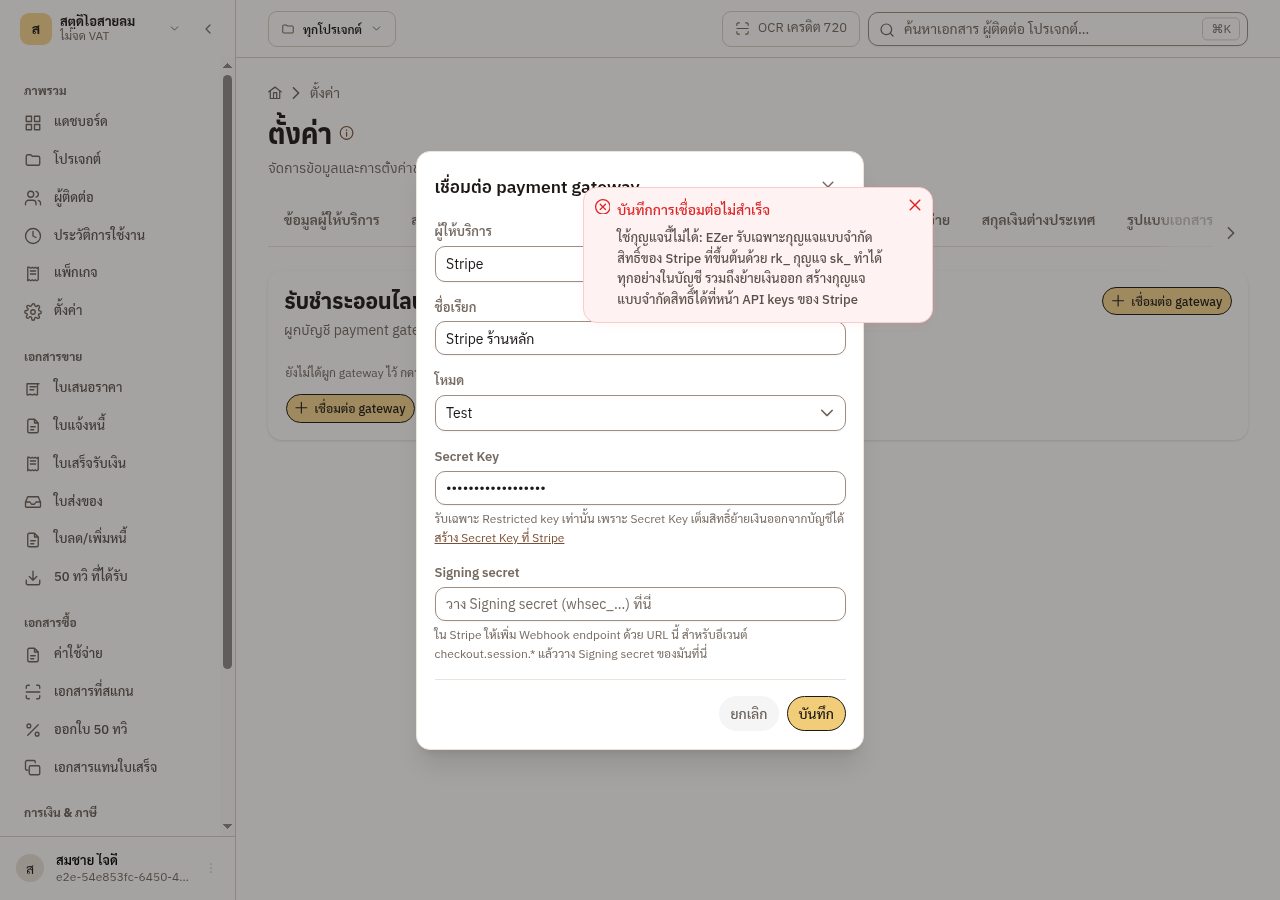
Choose the gateway, give it a name you will recognise, choose the mode and paste the Secret Key. If you paste a full-access Stripe key (sk_), it is refused with a message to use an rk_ key. What you typed stays in the dialog, so you only change the key.
-
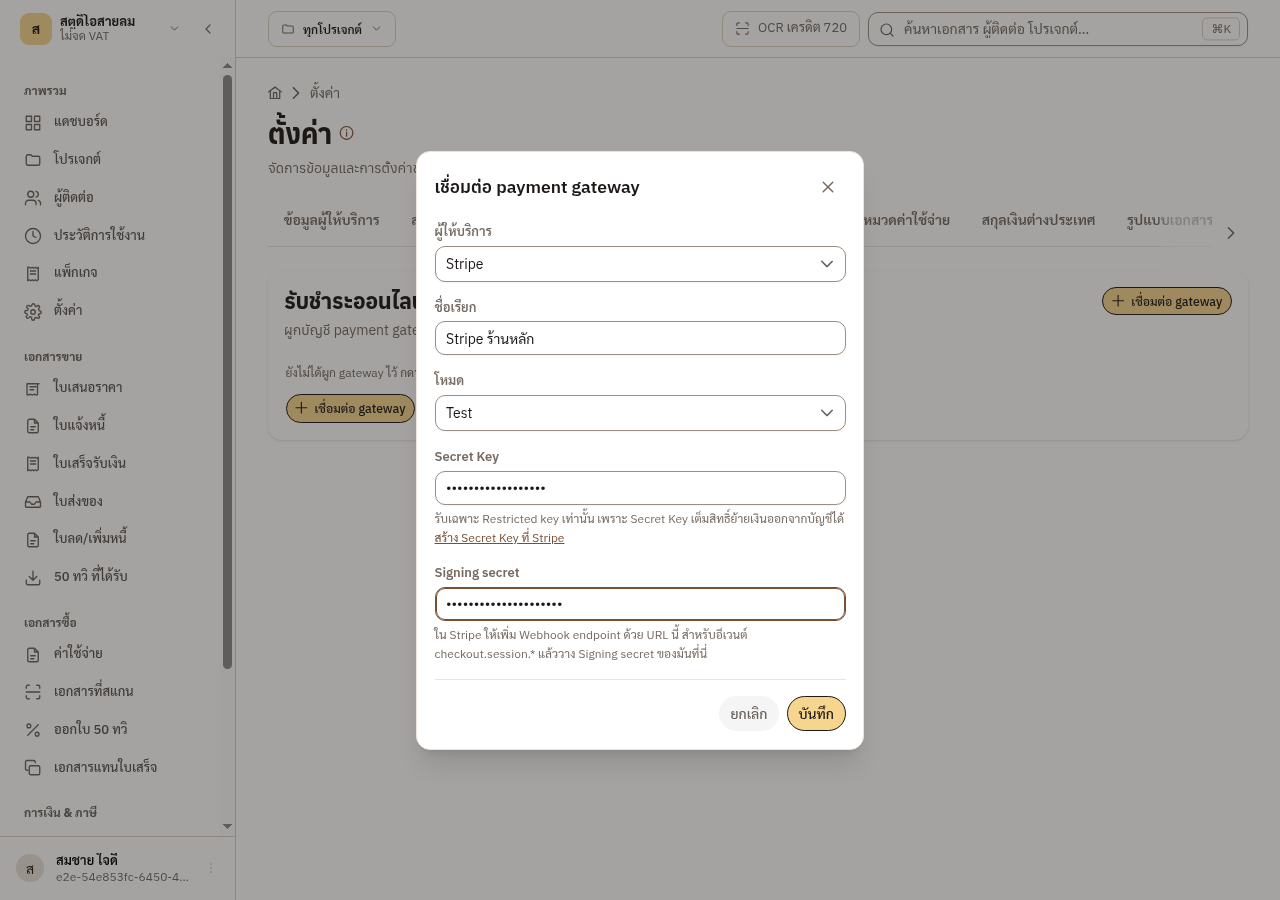
For Stripe and Omise, also paste the Signing secret. Then press บันทึก (Save).
-
EZer tests the key with the gateway before it saves. If the test passes, the connection shows พร้อมรับเงิน (ready to collect). The first connection becomes the default.
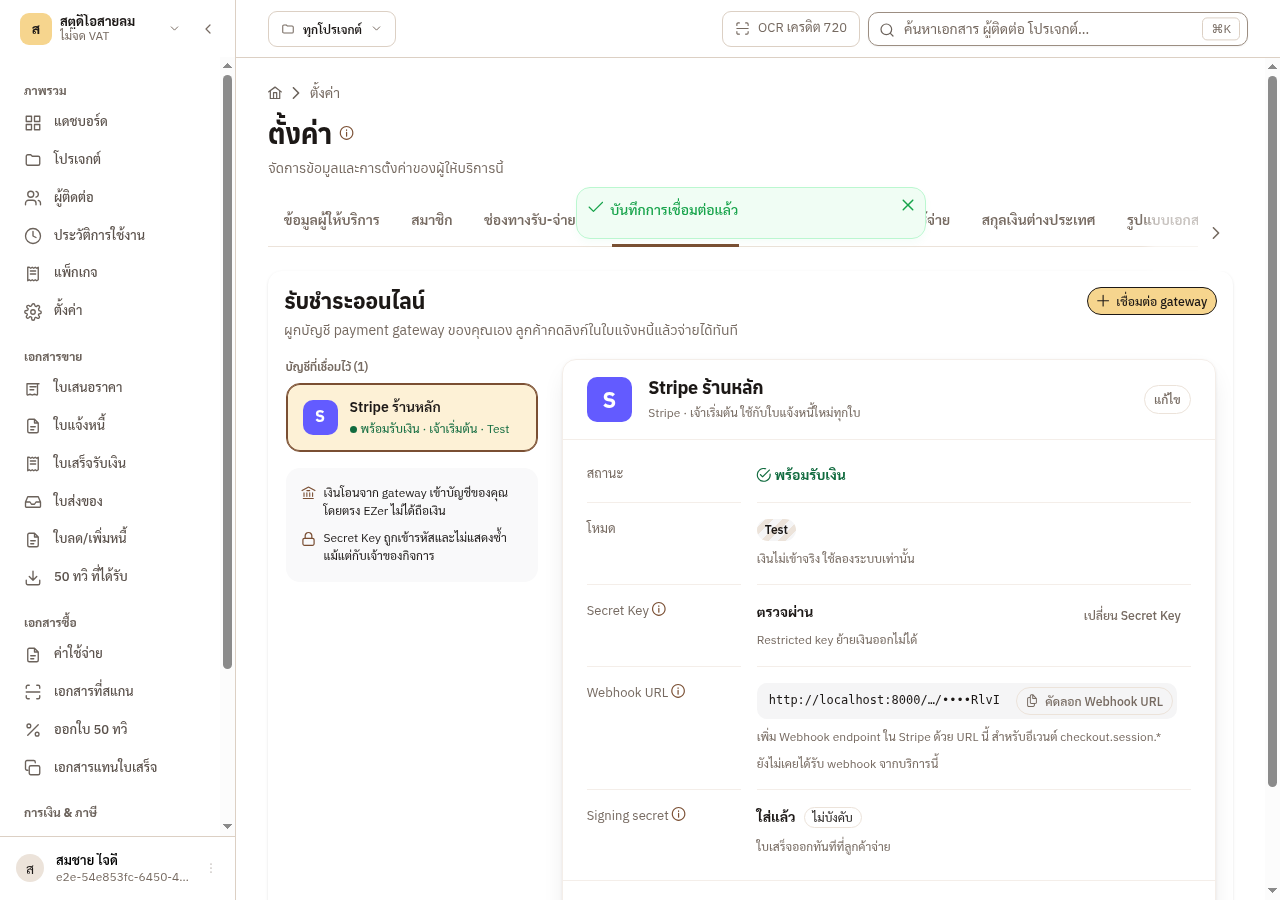
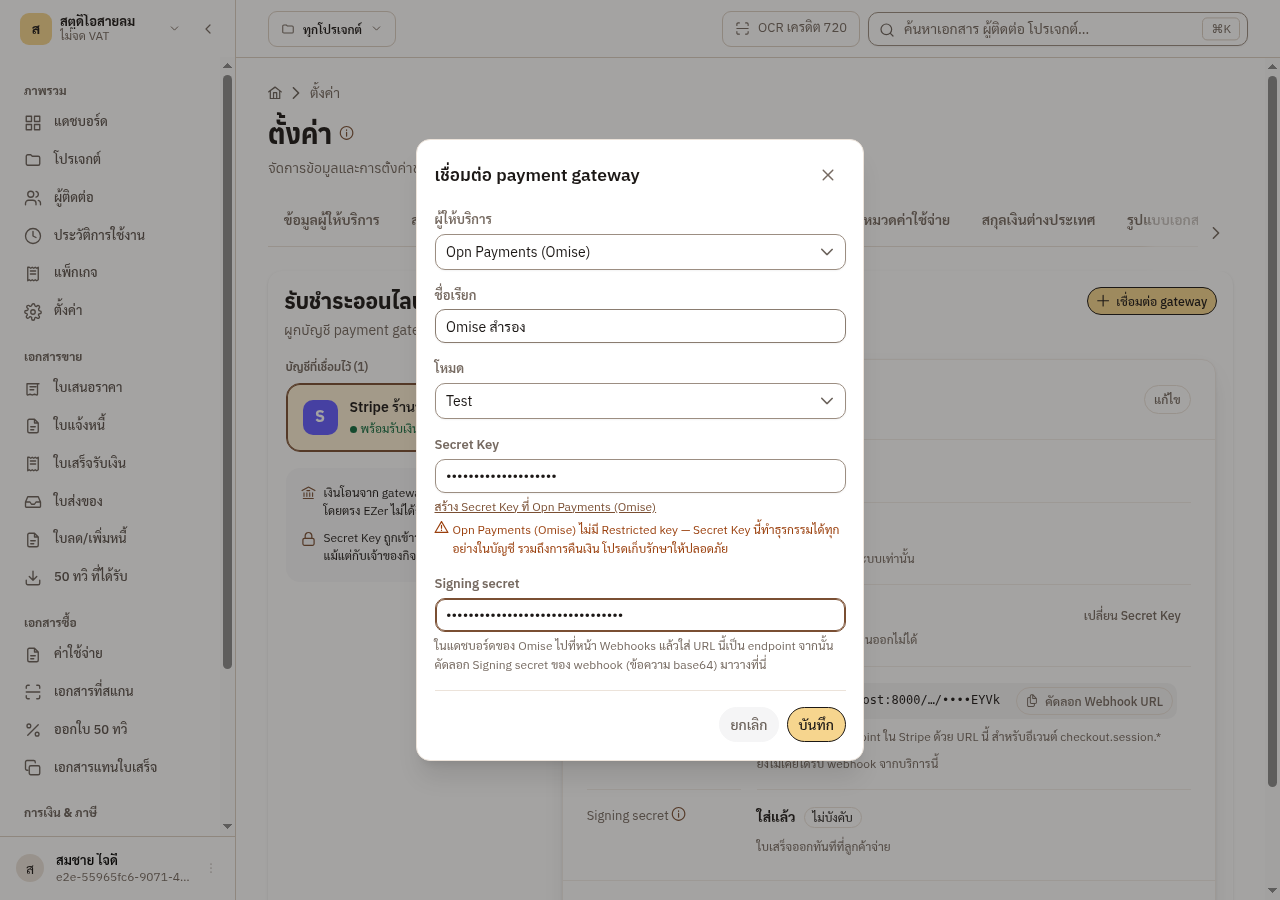
Figure 9-1: When you choose Omise, the dialog warns that this key has full access.
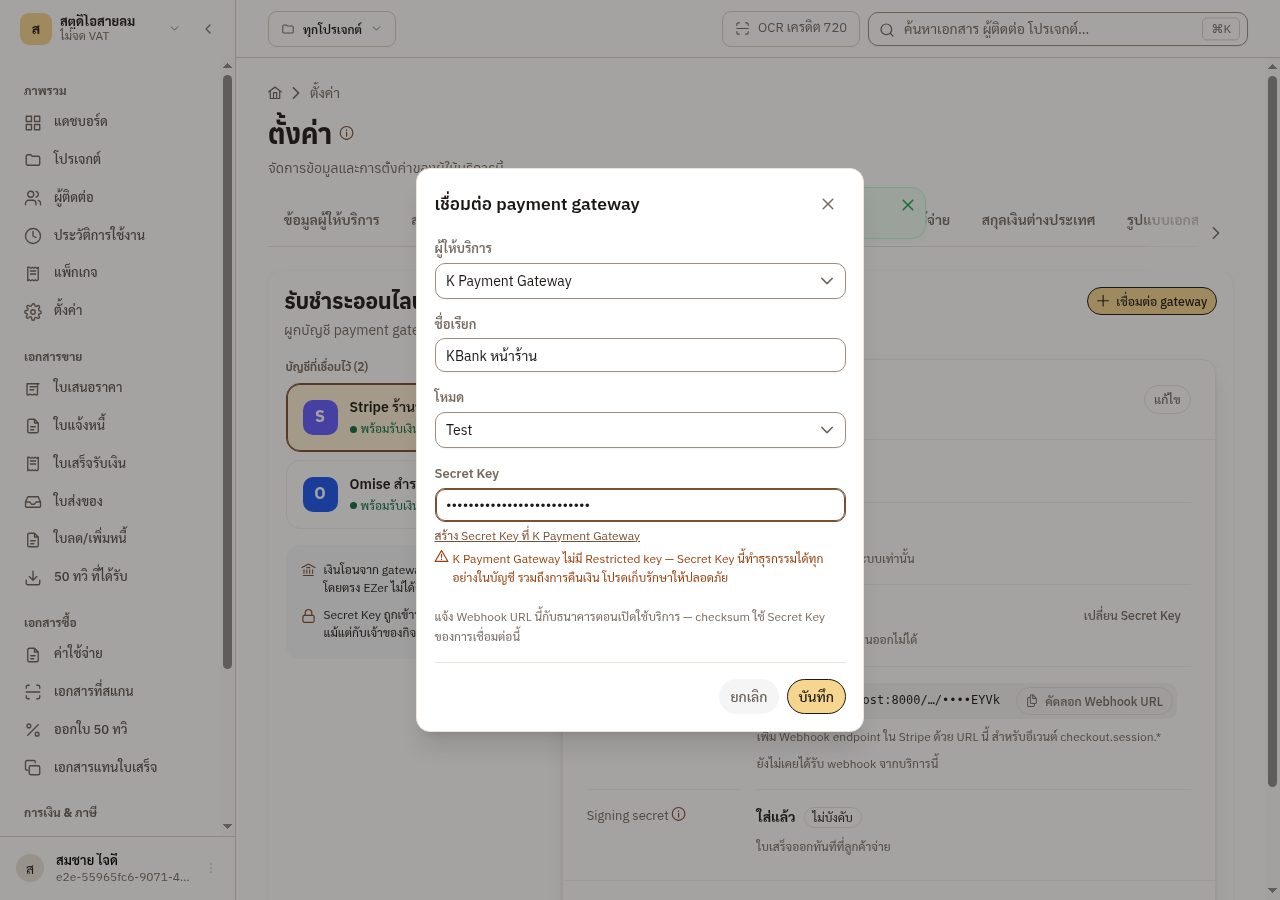
Figure 9-2: When you choose K Payment Gateway, there is no signing-secret field.
9.5 Register the webhook
Section titled “9.5 Register the webhook”A webhook is how the gateway tells EZer at once that a customer paid. Each connection has its own webhook URL in the Webhook column. Press the copy button beside the URL and set it up at the gateway.
| Gateway | What to do |
|---|---|
| Stripe | In the Stripe dashboard, add a Webhook endpoint with this URL for the events checkout.session.completed, checkout.session.async_payment_succeeded, checkout.session.async_payment_failed and checkout.session.expired. Then paste its Signing secret (whsec_) into the connection. |
| Opn Payments (Omise) | On the Webhooks page of the Omise dashboard, enter this URL. Then paste the base64 secret from the same page into the connection. |
| K Payment Gateway (KBank) | Give this URL to the bank when you open the service. You cannot set it yourself, and no Signing secret is needed. |
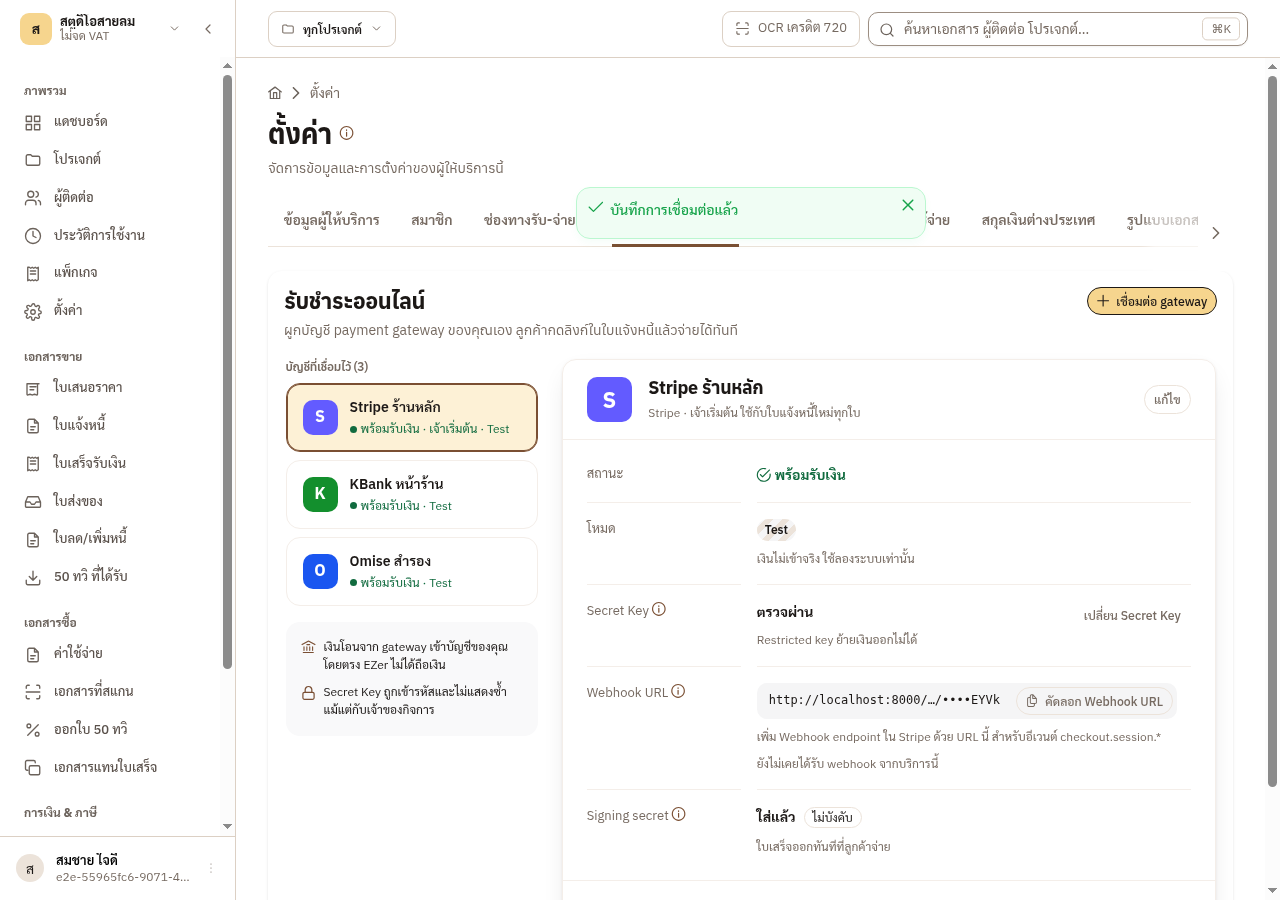
Figure 9-3: The connection list on the left, and the chosen connection’s details on the right. The Webhook URL row shows a shortened URL and a copy button. The Signing secret row says whether one is set.
9.6 Manage your connections
Section titled “9.6 Manage your connections”You can connect several gateway accounts at the same time, but payment links always use the default one. The customer does not choose. Each row has these buttons.
| Button | What it does |
|---|---|
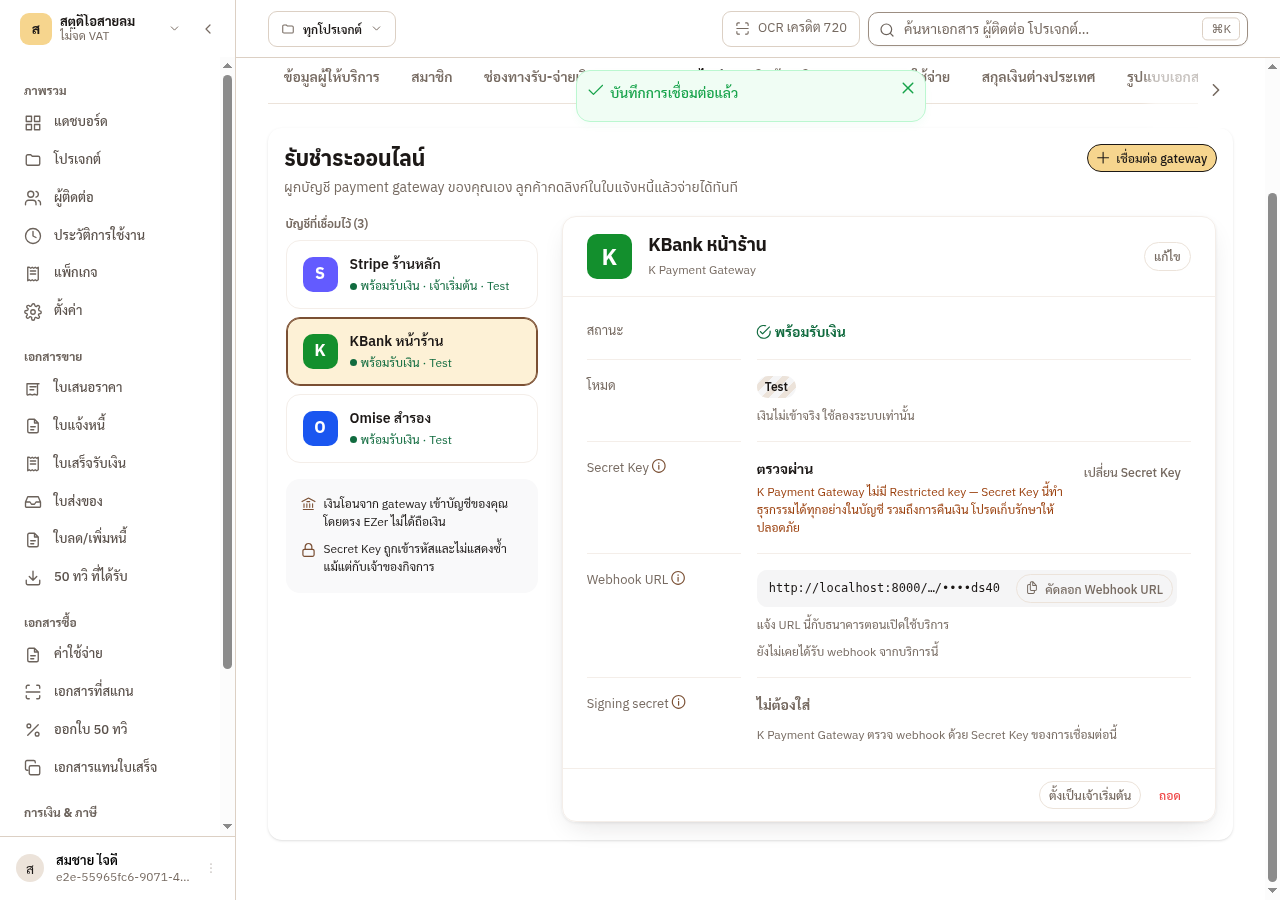
| ตั้งเป็นเจ้าเริ่มต้น (make default) | New payment links use this connection. The button shows only on a connection that is ready to collect and is not the default yet. |
| ตรวจอีกครั้ง (check again) | Tests the Secret Key with the gateway again. The button shows only on a connection whose Secret Key could not be confirmed: the gateway refused the key, or EZer could not reach the gateway. The gateway’s reply shows in the red box at the top. Try this button before you make a new key. |
| แก้ไข (edit) | Changes the name, mode, Secret Key or Signing secret. You cannot change the gateway. A new key is tested again, and the open payment pages of this connection are closed. |
| ถอด (remove) | Stops this key from collecting money, and closes every pending link of this connection. Payments already collected keep their status. You are asked to confirm first. |
-
Press ตั้งเป็นเจ้าเริ่มต้น on the row you want. The เจ้าเริ่มต้น (default) tag moves to that row.
-
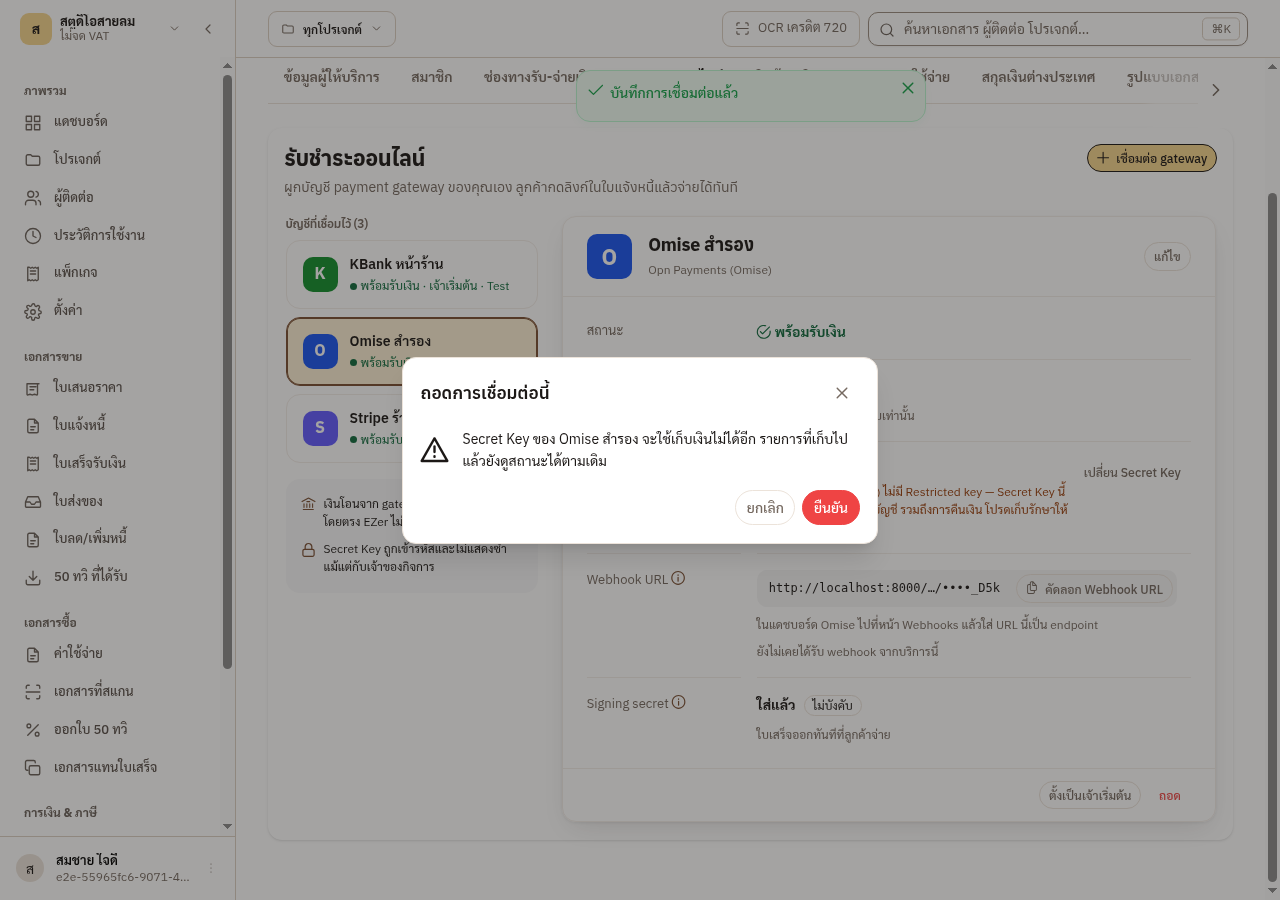
Press the bin icon to remove. The prompt names the connection. Press ยืนยัน (confirm) if it is right.
-
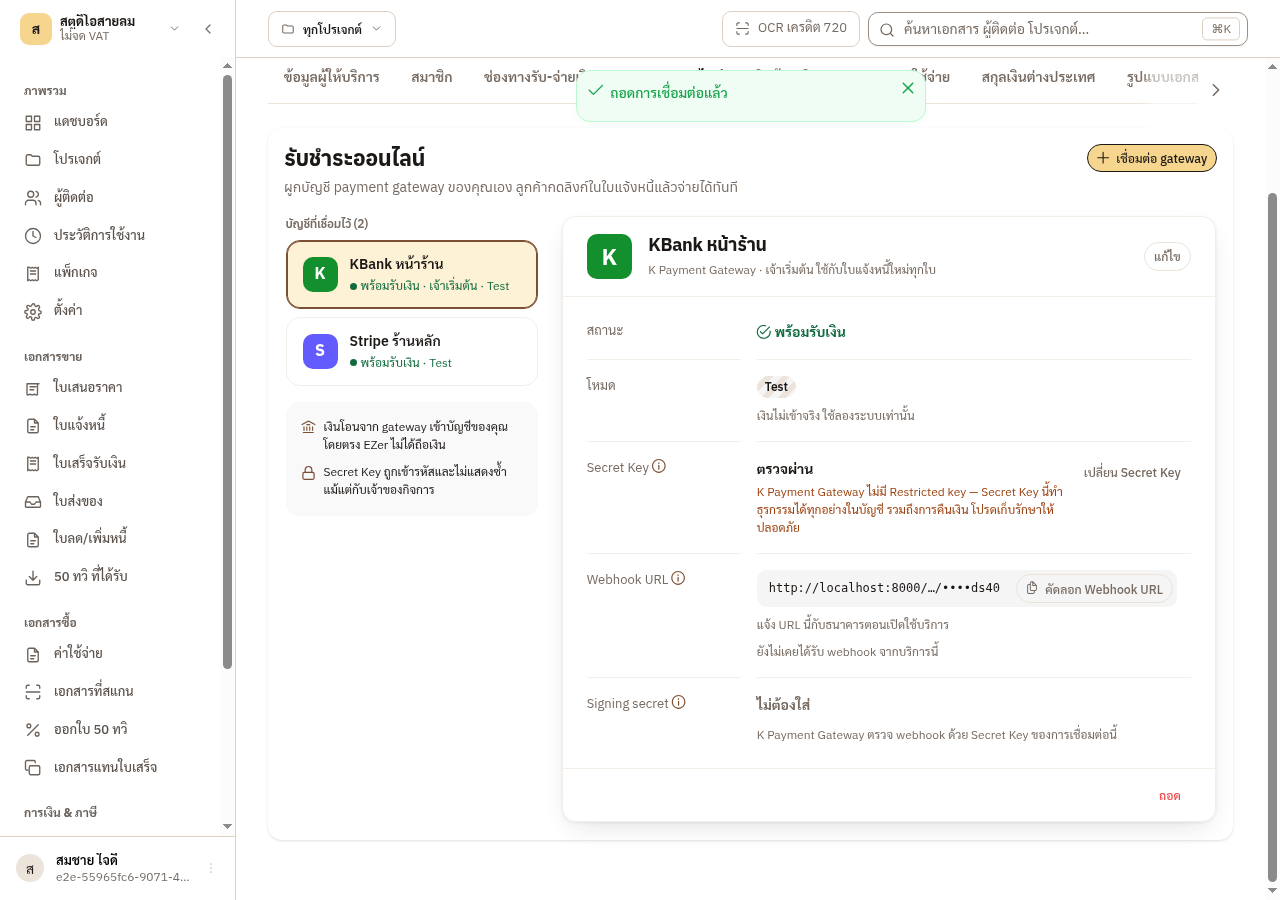
The removed row is no longer in the list.
Test mode is for trying the system out, and no real money moves. When you are ready, add a new connection in live mode with a live key, and make it the default.
9.7 Create a payment link from an invoice
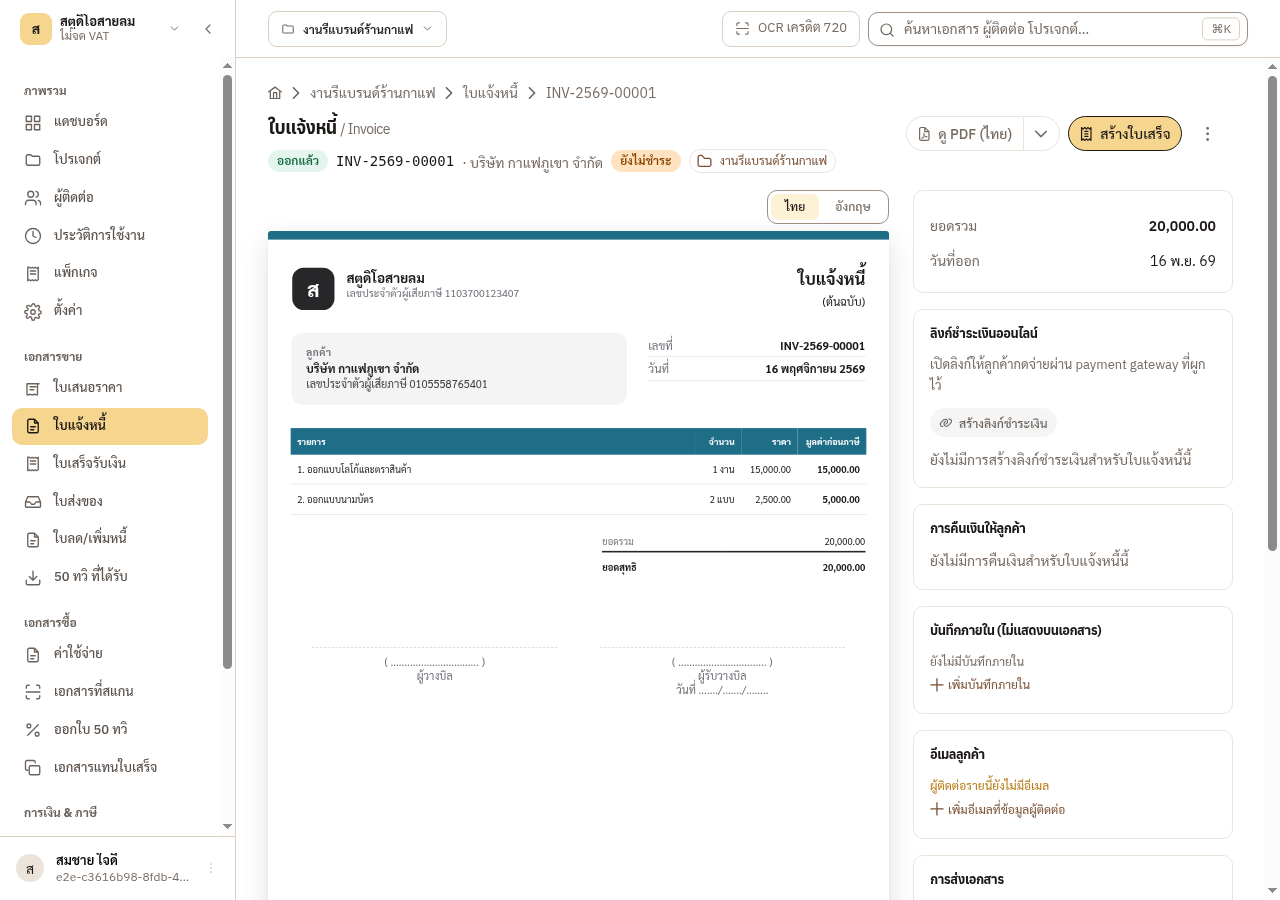
Section titled “9.7 Create a payment link from an invoice”The ลิงก์ชำระเงินออนไลน์ (online payment link) card shows on an issued invoice only. A draft invoice cannot have a link yet.
-
Open an issued invoice. The online payment link card is on the right.
-
Press สร้างลิงก์ชำระเงิน (create payment link). EZer makes the link and tries to copy it at once, ready to paste into a chat or email to your customer. If the browser does not allow the copy, EZer warns that the link was made but could not be copied. Press คัดลอกลิงก์ (copy link) in the list on the card. Do not create the link again.
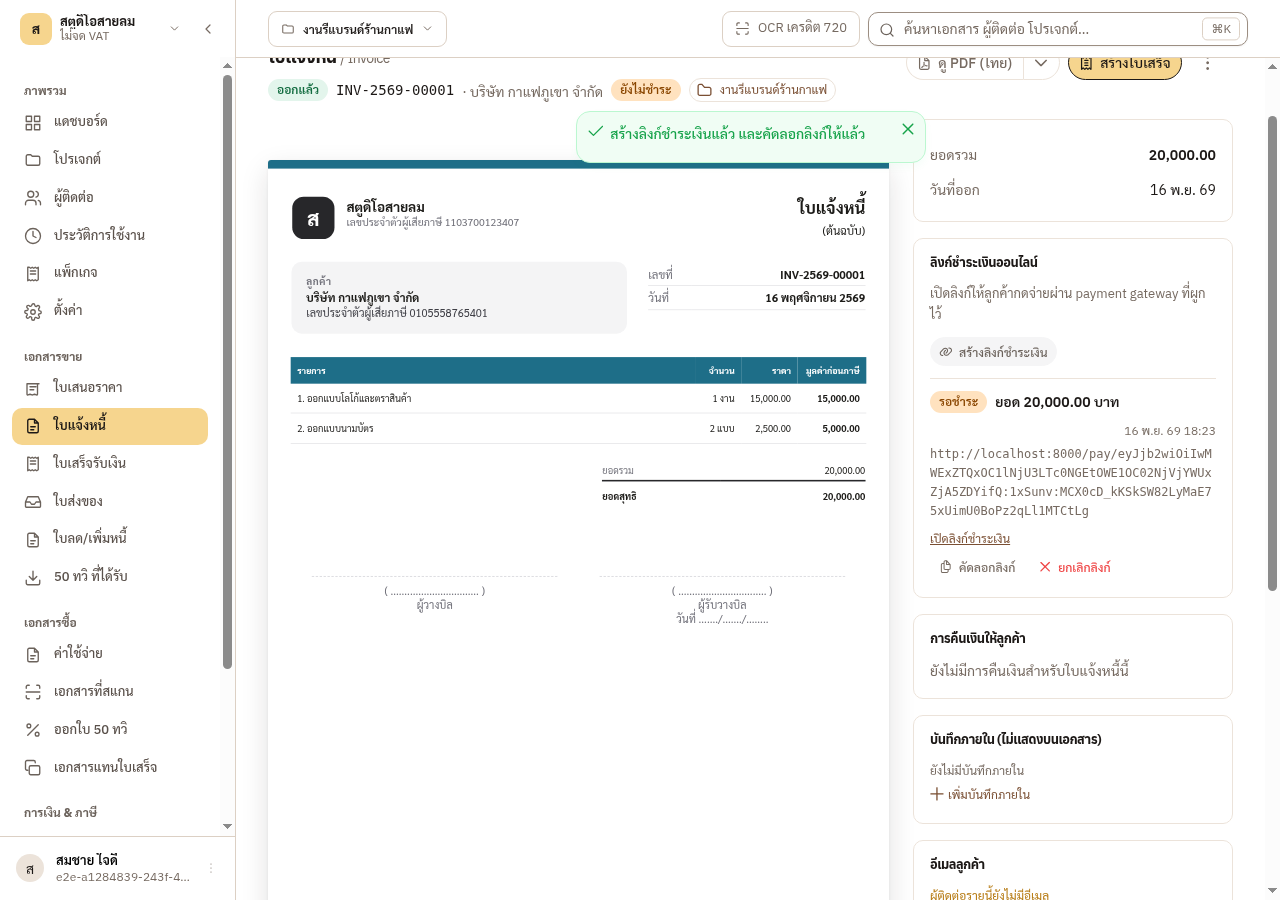
Figure 9-4: A pending link shows the amount, the time it was made, the link itself, and the copy and cancel buttons.
What to know about the link
- An invoice with withholding tax (หัก ณ ที่จ่าย) cannot have a payment link. A gateway page takes one amount only and cannot receive the withholding certificate. If you add withholding tax after the link exists, the link is closed. Collect such an invoice the usual way.
- The amount is what the invoice still owes when you create the link. You cannot type an amount. If the customer already paid part of it another way, the link collects only the rest.
- An invoice has only one open payment page at a time, so the customer cannot pay twice. If you create a link again while the old page is still open for the same amount, EZer keeps the old page. If the amount changed, EZer closes the old page first. If the customer already paid, or the payment is waiting for the bank, EZer refuses a new link.
- The link works for up to 90 days while the invoice is owed. The gateway’s own page expires sooner, for example after about a day at Stripe. The card then shows that entry as หมดอายุ (expired), but a link you already sent still opens a new page. To get a new link to copy, press สร้างลิงก์ชำระเงิน again.
- The link closes by itself when the invoice is cancelled, reopened to a draft, edited, fully paid another way, or its connection stops working.
- Anyone with the link can open the payment page without signing in. Send the link to that invoice’s customer only.
9.8 Cancel a payment link
Section titled “9.8 Cancel a payment link”-
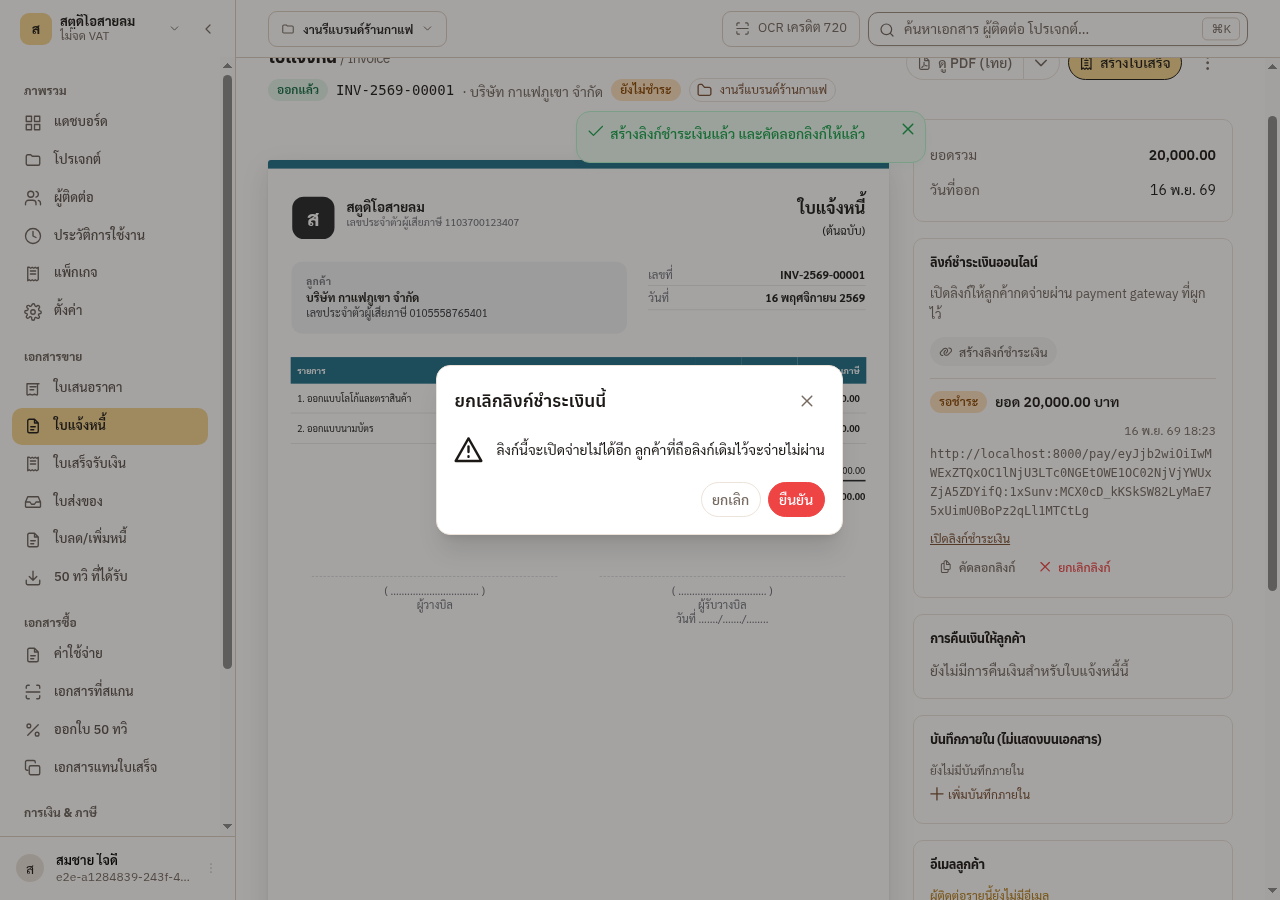
On the pending link, press ยกเลิกลิงก์ (cancel link) and then confirm. A customer holding the old link can no longer pay with it.
-
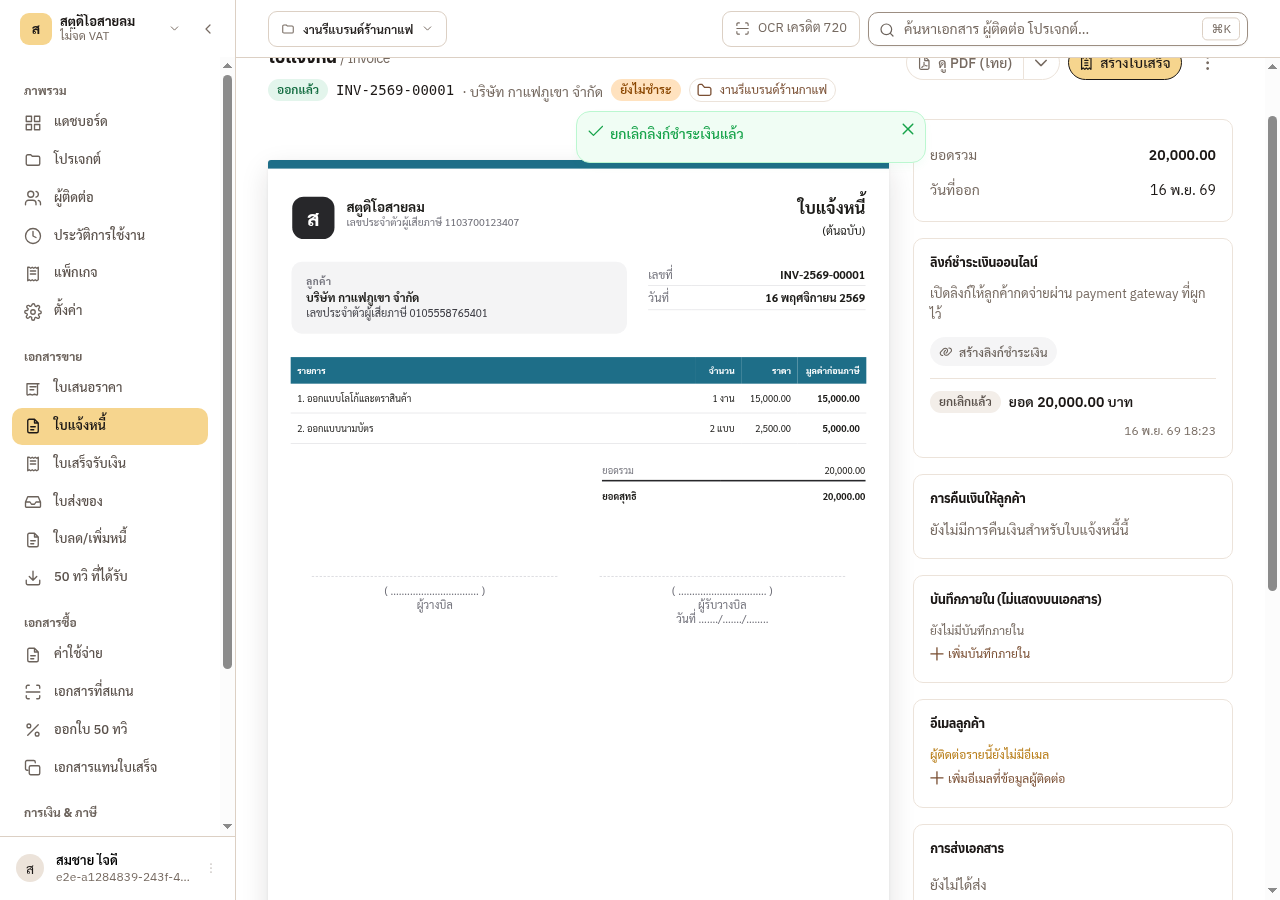
The link’s status changes to ยกเลิกแล้ว (cancelled). To collect the money again, create a new link.
9.9 The customer pays
Section titled “9.9 The customer pays”-
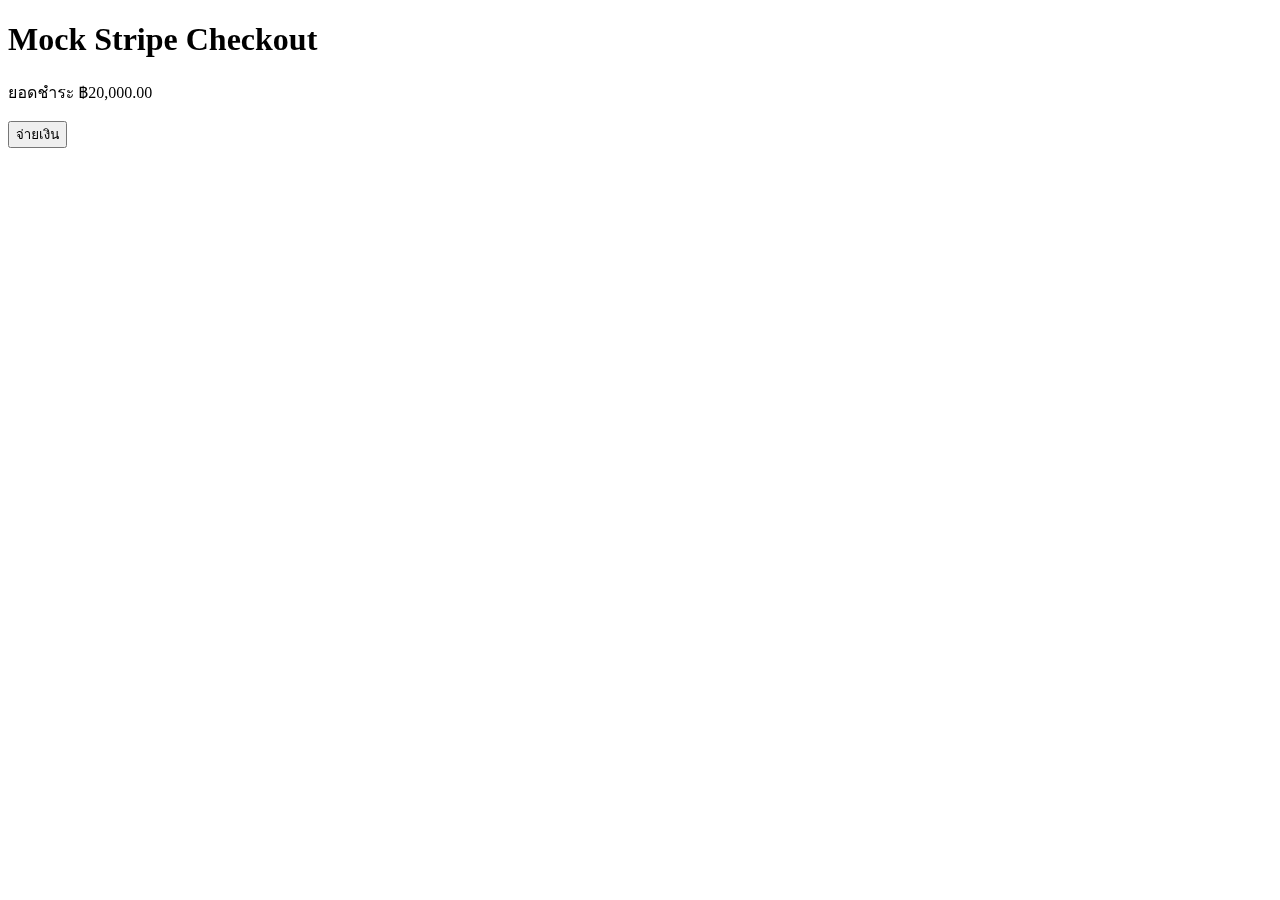
The customer opens the link and goes to the gateway’s payment page, where they choose how to pay and pay. This picture is the simulated page used for testing. The real page is Stripe’s, Omise’s or KBank’s.
-
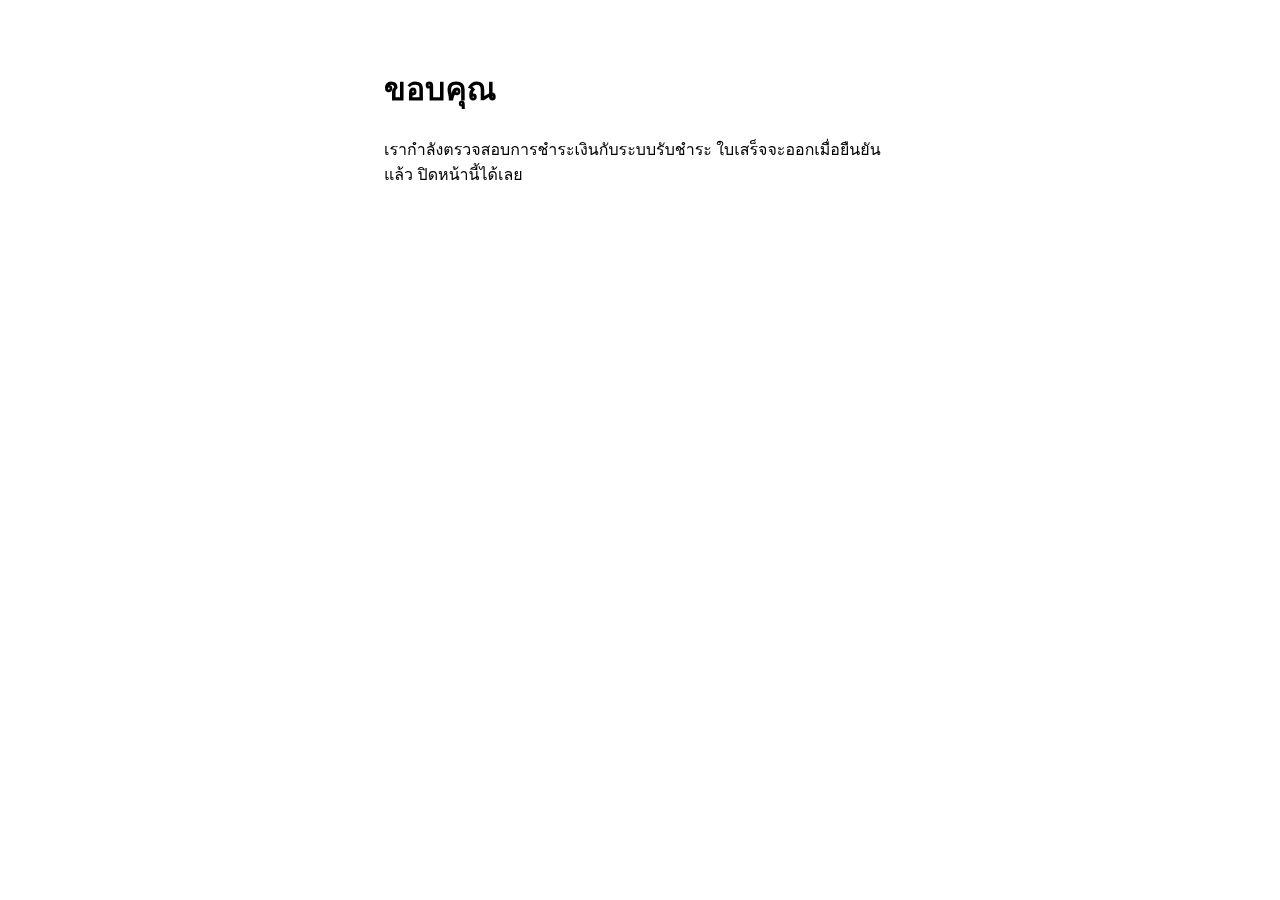
After paying, the customer sees a thank-you page.
9.10 After payment: the receipt is issued for you
Section titled “9.10 After payment: the receipt is issued for you”When the gateway reports a payment, EZer asks the gateway for the real status before it does anything. EZer also checks pending links every 5 minutes, so money that arrived still gets a receipt if the gateway’s message was lost.
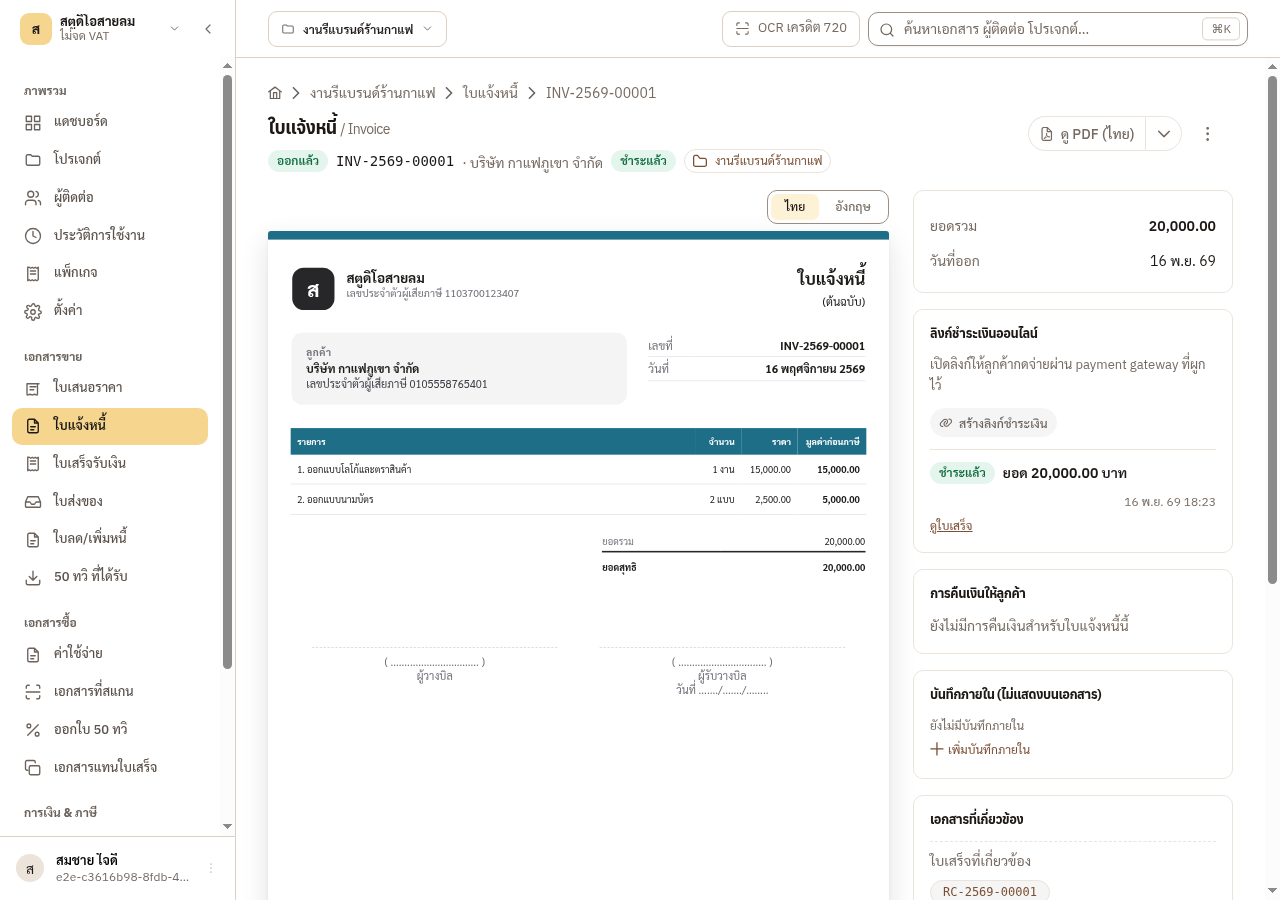
Figure 9-5: The invoice is now ชำระแล้ว (paid). The link shows paid with a ดูใบเสร็จ (view receipt) link, and the receipt is listed under related documents.
EZer issues the receipt by itself when it is safe to. The main checks are these
- The invoice is still issued: not cancelled and not reopened to a draft.
- The month the money arrived in is not closed.
- The money received is no more than the invoice still owes.
- The receipt’s total comes out at exactly the money received.
If one of them fails, or issuing hits another problem, EZer makes a draft receipt instead and writes the reason in the receipt’s internal note. The invoice does not show as paid until the receipt is issued. Open that draft receipt, read the reason, fix the cause and issue it yourself.
Payment link statuses
| Status | Meaning |
|---|---|
| รอชำระ (pending) | The link is open and the customer has not paid yet. |
| ชำระแล้ว (paid) | The customer paid. The receipt may still be on its way, or be a draft waiting for you to issue it. |
| ล้มเหลว (failed) | The gateway could not make the payment page, or the payment failed. The reason shows under the link. |
| หมดอายุ (expired) | The gateway’s page ran out of time unpaid, or no longer fitted the invoice and was closed. If the invoice is still owed, a link you sent still opens a new page, or you can create a new link. |
| ยกเลิกแล้ว (cancelled) | Somebody cancelled this link. |
9.11 For developers: create links through the API
Section titled “9.11 For developers: create links through the API”An outside system, such as an online shop or a booking system, calls EZer once with a write API key at POST /api/projects/{project_id}/payment-collections, and gets back both an issued invoice and a payment link. Send your order id as the Idempotency-Key to stop duplicates.
Then poll GET /api/payment-collections/{id} until it is paid and has a receipt. Cancel with POST /api/payment-collections/{id}/cancel. With several connections, you can pass gateway_connection_id. Without it, the default is used.
9.12 Common problems
Section titled “9.12 Common problems”Problems when you connect a gateway
| Problem | Cause and fix |
|---|---|
| The connection is not saved and the message asks for rk_ | You pasted a Stripe sk_ key. Make a restricted key on Stripe’s API keys page and paste that instead. |
| The message says the key does not match the mode | A test key works in test mode only, and a live key in live mode only. Change the mode or the key so they match. |
| The message says it is a public key (pk_ or pkey_) | You copied the wrong key. Use the Secret Key, not the Public Key. |
| Omise refuses the webhook secret | Omise’s secret must be the base64 string from the Webhooks page of its dashboard. Copy all of it again. |
| You cannot see the connect button | Your role does not have this access. Ask the Super Admin or a manager to connect it. |
Problems when you collect a payment
| Problem | Cause and fix |
|---|---|
| A new link has the status ล้มเหลว (failed) | Read the reason under the link. For Stripe, the usual cause is an rk_ key without the Checkout Sessions: Write permission. The connection still passed, because the key test does not use that permission. Add the permission at Stripe and create a new link. |
| The link is not created and no link shows on the card | Read the message. Usual causes: the invoice has withholding tax, the amount is below or above what the gateway accepts (see the key table), no verified connection exists, or the customer already paid this invoice. |
| The customer paid but there is no receipt yet | Without a Signing secret or a registered webhook, the receipt can take up to about 5 minutes. Wait and refresh the page. If it still does not come, check the webhook set-up at the gateway. |
| The receipt is a draft | One of the four conditions failed, for example the month is closed. Open the receipt, read the reason in its internal note, fix the cause and issue it yourself. |
| There is no payment link card on the invoice | The card shows on issued invoices only, so issue the invoice first. If you see the card but no create button, your role cannot edit sales documents. |