5. Issue your first sales document
5.1 Before you start
Section titled “5.1 Before you start”Every sales document lives under a project, and your provider (your business) must already exist. If it does not, follow the chapter on creating your first provider first.
If you have no project yet, the document form has a สร้างโปรเจกต์แรก button (only for people who may create projects). You can pick or create the customer in the same form.
The sales documents (เอกสารขาย) menu sits in the sidebar. It holds quotations (ใบเสนอราคา), invoices (ใบแจ้งหนี้) and receipts (ใบเสร็จรับเงิน). The tax invoice (ใบกำกับภาษี) appears there only when your business is VAT-registered.
The manager, sales and the document clerk can issue sales documents.
5.2 Step 1: write a quotation
Section titled “5.2 Step 1: write a quotation”A quotation tells the customer what you will do and for how much. It is not yet a debt. If you sell and bill straight away, you can skip to the invoice in step 2.
-
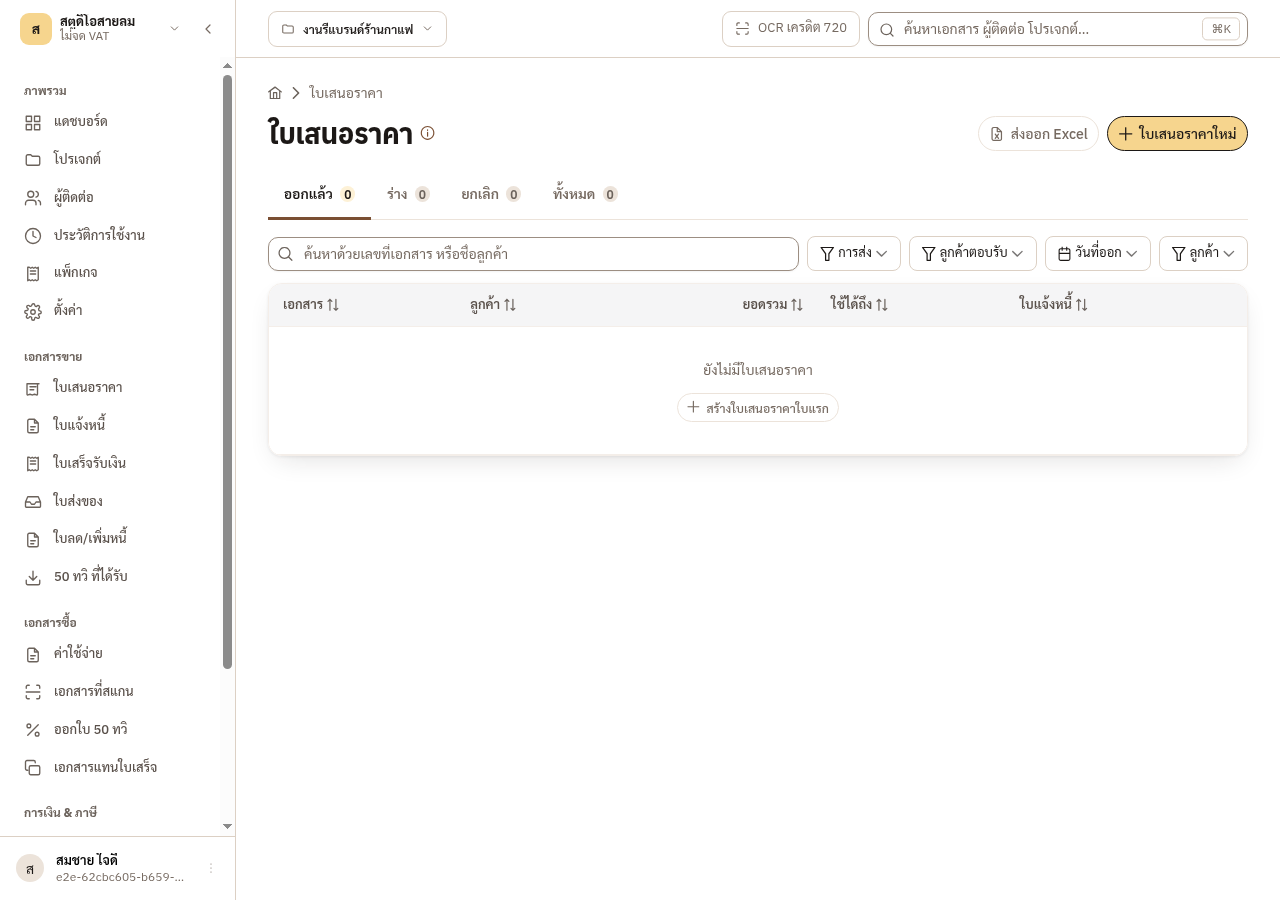
Open sales documents > quotations (ใบเสนอราคา) and press ใบเสนอราคาใหม่. If the list is empty, press สร้างใบเสนอราคาใบแรก.
-
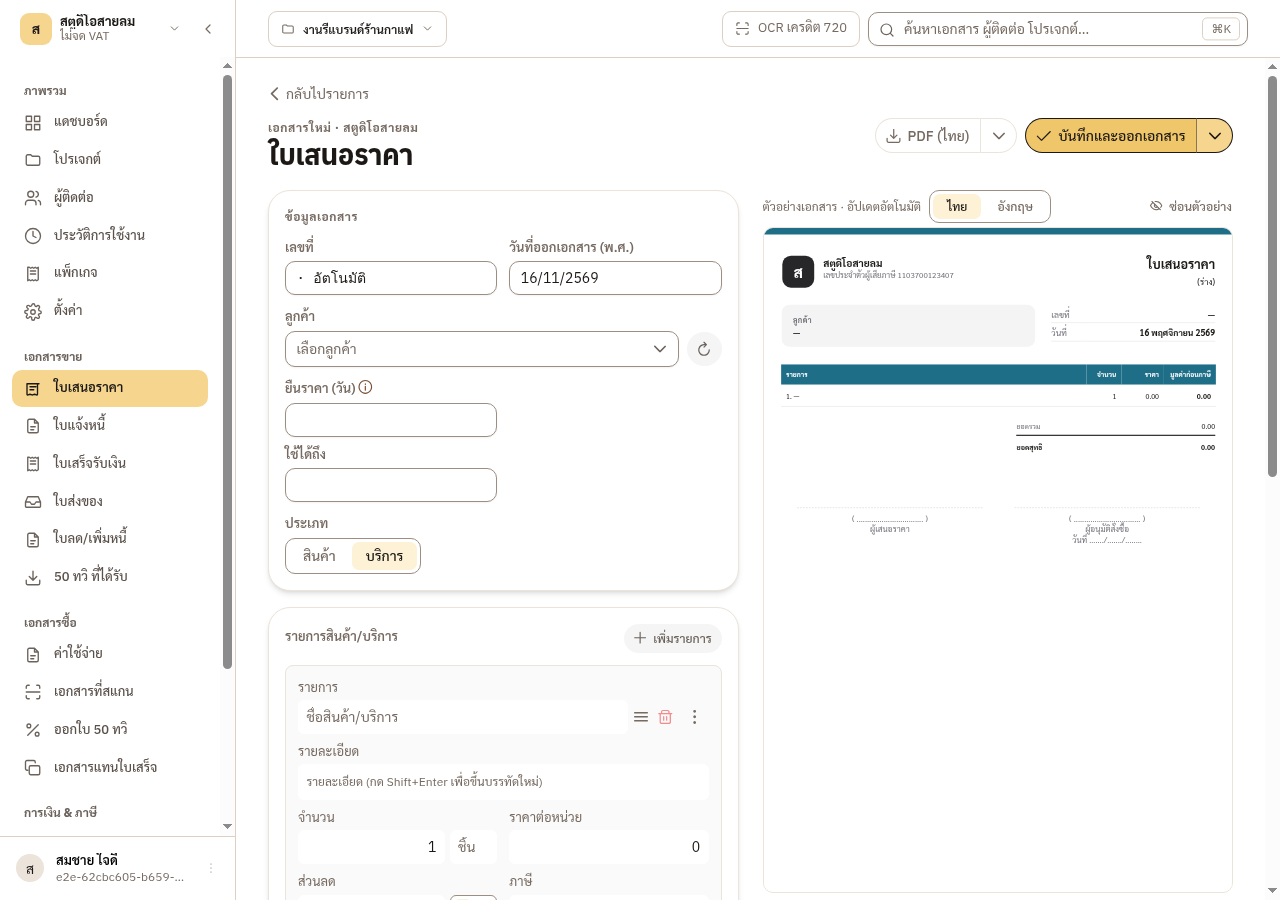
In the เอกสารใหม่ form, pick the ลูกค้า (and the project, if the form asks for one). A customer is required before you can issue. If you have none yet, open the ลูกค้า field and choose สร้างลูกค้าใหม่ at the top of its list.
-
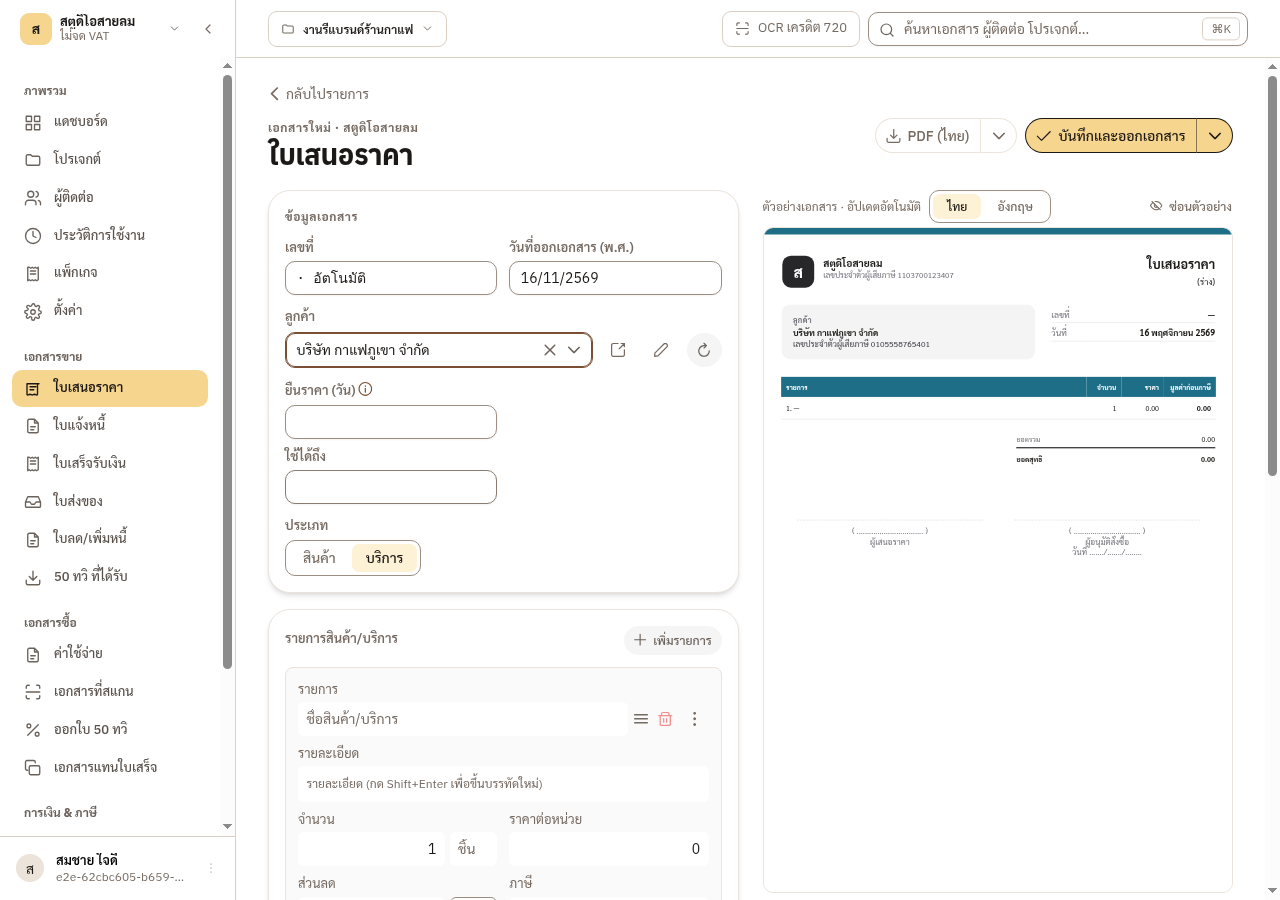
Check the customer’s name and address. If they are wrong, press แก้ไขผู้ติดต่อ and fix them before you issue.
-
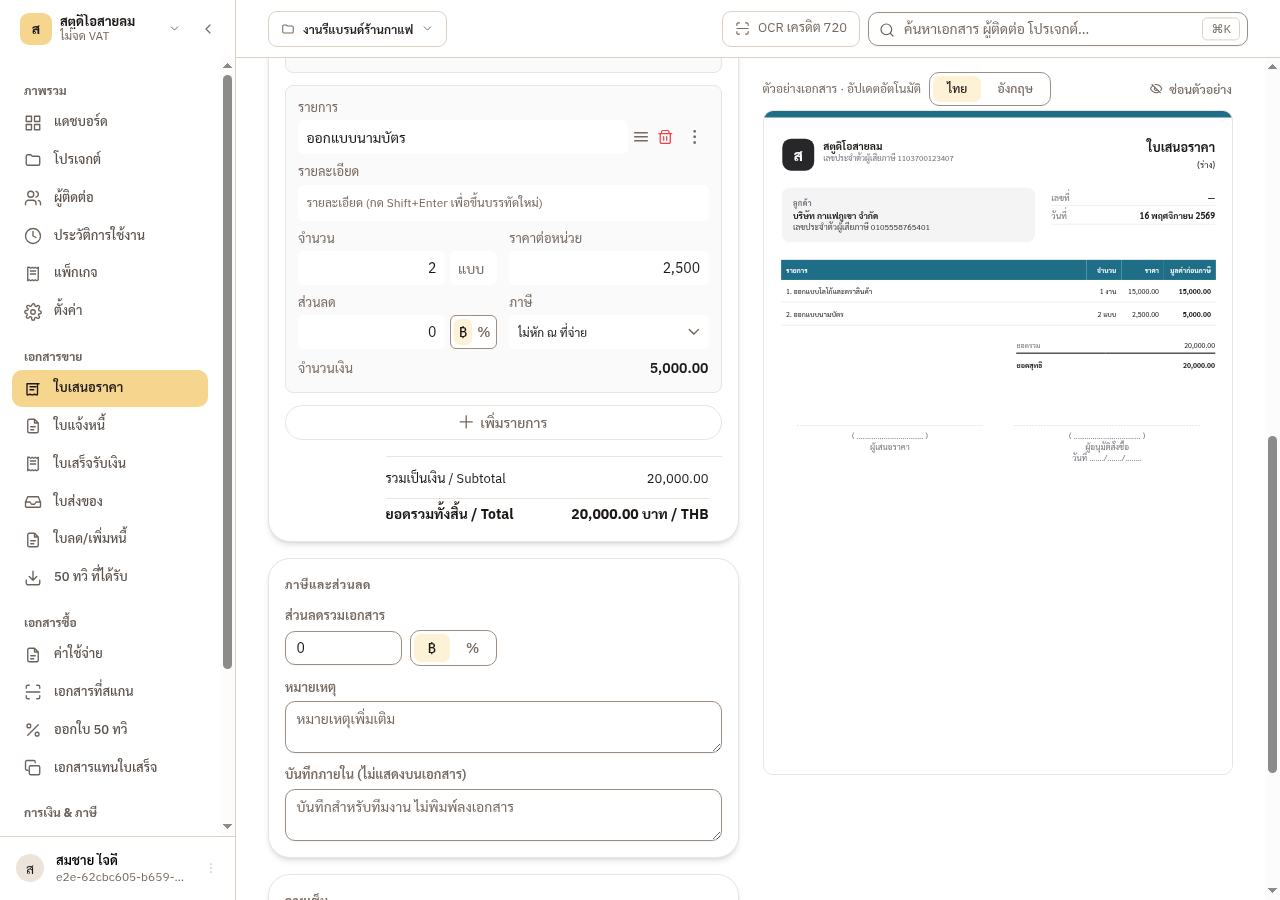
Under รายการสินค้า/บริการ, press เพิ่มรายการ and fill รายการ, จำนวน, หน่วย and ราคาต่อหน่วย. EZer adds up the total.
→ You should see: For a business that is not VAT-registered, the total equals the subtotal. There is no VAT.
-
Press บันทึกและออกเอกสาร.
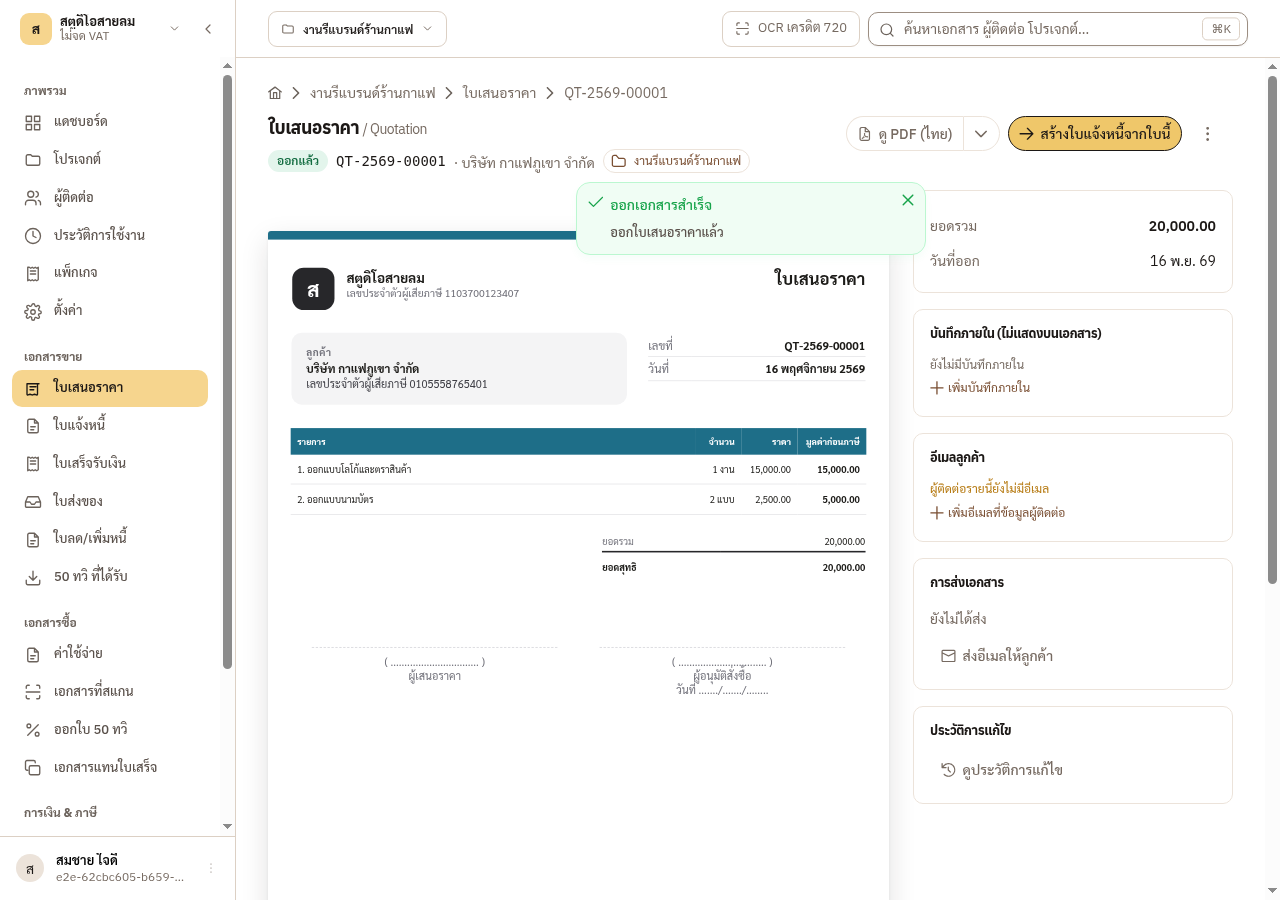
→ You should see: The quotation gets a number such as QT-2569-00001, and its detail page opens.
Where the document number comes from
Section titled “Where the document number comes from”A number reads type, Buddhist-era year, then a five-digit count, for example QT-2569-00001 and INV-2569-00001. EZer assigns it when you issue, so a draft has no number yet. The count restarts each calendar year. It runs across the whole business, not per project. If you cancel a document, its number is kept and never reused.
To keep a document for later, open the arrow beside the button and choose บันทึกฉบับร่าง. You can edit and delete a draft that never had a number. A draft pulled back from issued keeps its number and cannot be deleted.
Due dates and how long a price holds
Section titled “Due dates and how long a price holds”A quotation has ยืนราคา (วัน), which works out ใช้ได้ถึง. An invoice has เครดิต (วัน), which works out กำหนดชำระ, or you can pick the due date yourself. EZer refuses a due date earlier than the issue date. Write other text in หมายเหตุ, which prints on the document. บันทึกภายใน never prints.
If you are VAT-registered, the tax invoice and VAT have their own rules. See the chapter on receipt rules.
Typing a price that includes VAT
Section titled “Typing a price that includes VAT”A VAT-registered business can type prices ก่อน VAT (before VAT) or รวม VAT (VAT included) at the top of the item table. With รวม VAT, type the price the customer really pays. The document total is exactly what you typed: type 7,000,000 and the total is 7,000,000.00. EZer takes the VAT out of that price by the Revenue Department method: VAT = price × 7 ÷ 107, rounded to the satang once. What is left is the amount before VAT.
A baht discount on a line, and a fixed discount on the whole document when every line is VAT-included, count VAT-included like the price. A discount of 10.70 baht off a price of 107.00 lowers the total by exactly 10.70. The document prints the discount as an amount before VAT (10.00 baht), so the figures on the page add up. Use the discount field only for a discount given at once. Do not use it for a conditional or a later discount, because those do not lower the VAT base.
Because VAT is rounded once from the VAT-included price, about 6 prices in 100 show a VAT that differs by 1 satang from 7% of the amount before VAT. Documents you already issued do not change.
5.3 Step 2: issue an invoice
Section titled “5.3 Step 2: issue an invoice”An invoice bills the agreed work and carries a due date. Once the customer accepts the quotation, create the invoice from it.
-
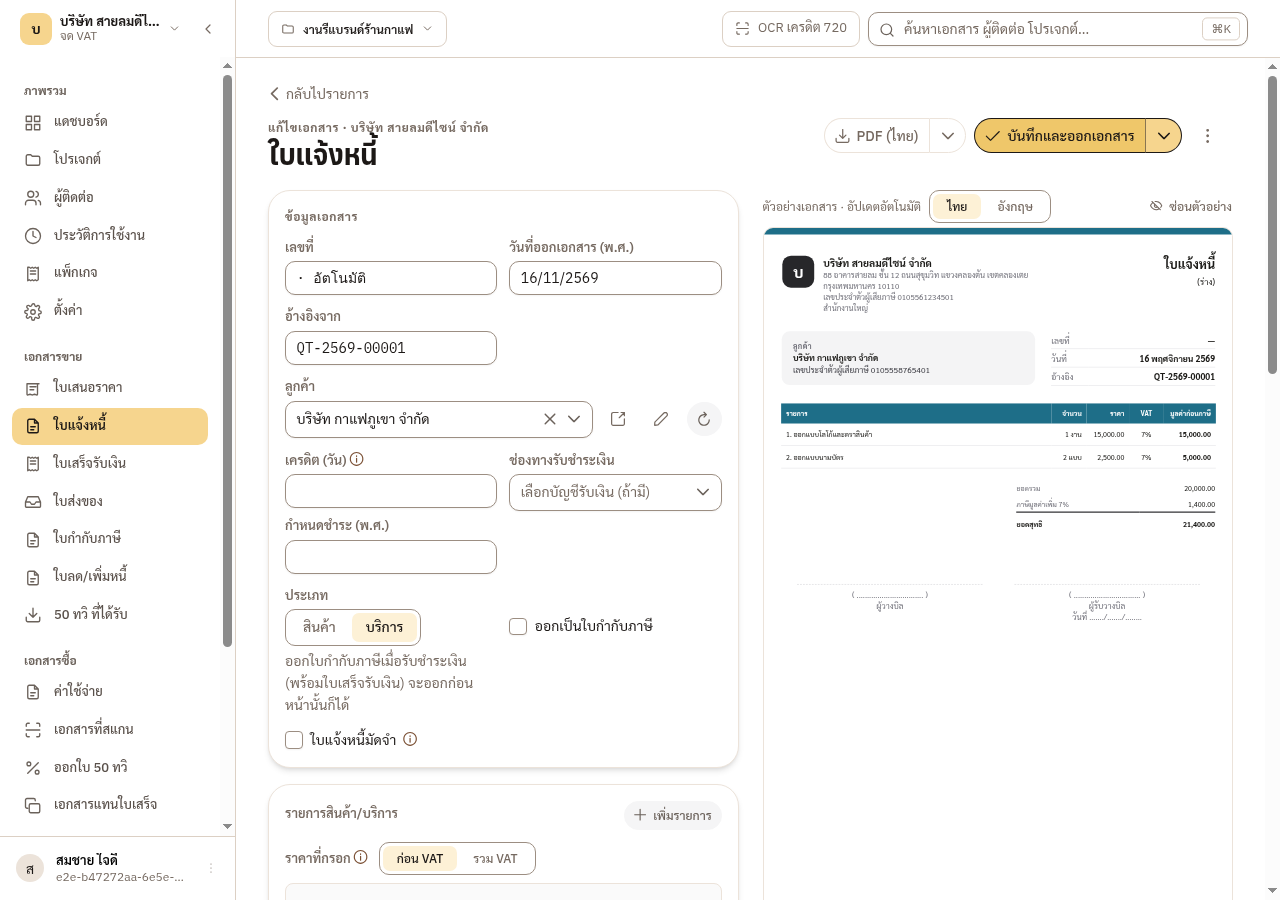
Open the issued quotation and press สร้างใบแจ้งหนี้จากใบนี้.
→ You should see: You get a draft invoice. The customer and the lines are copied over, and an อ้างอิงจาก line shows which quotation it came from.
-
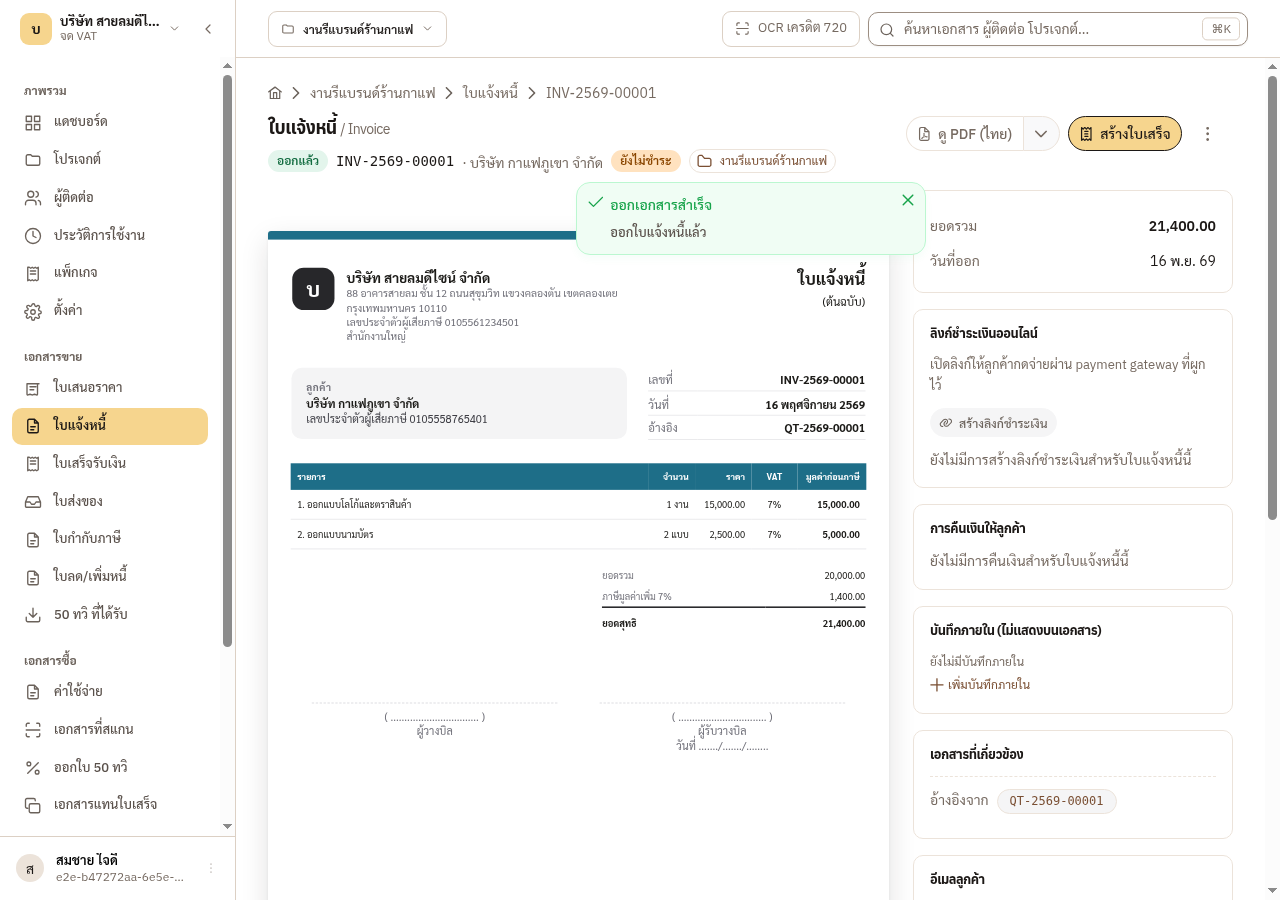
Change lines or prices if you need to, set the credit days or the due date, then press บันทึกและออกเอกสาร.
→ You should see: The invoice gets a number such as INV-2569-00001 and a ยังไม่ชำระ tag.
What to know about converting
- Converting copies the customer and lines into an editable draft. A later edit to the quotation does not change the invoice.
- The quotation is not cancelled and keeps its number, but once an issued invoice refers to it, its amount fields cannot be edited. One quotation can have several invoices, for example when you bill in instalments.
- If a draft invoice from this quotation already exists, EZer asks whether to open it or make a new one.
- You can skip the quotation. Press ใบแจ้งหนี้ใหม่ in the invoice list and fill the form as in step 1, or press สร้างจากใบเสนอราคา to pick a quotation from a list.
5.4 Step 3: issue a receipt when you are paid
Section titled “5.4 Step 3: issue a receipt when you are paid”A receipt proves you have been paid, and it is where EZer records the payment against an invoice. An invoice has no “paid” button for you to tick.
-
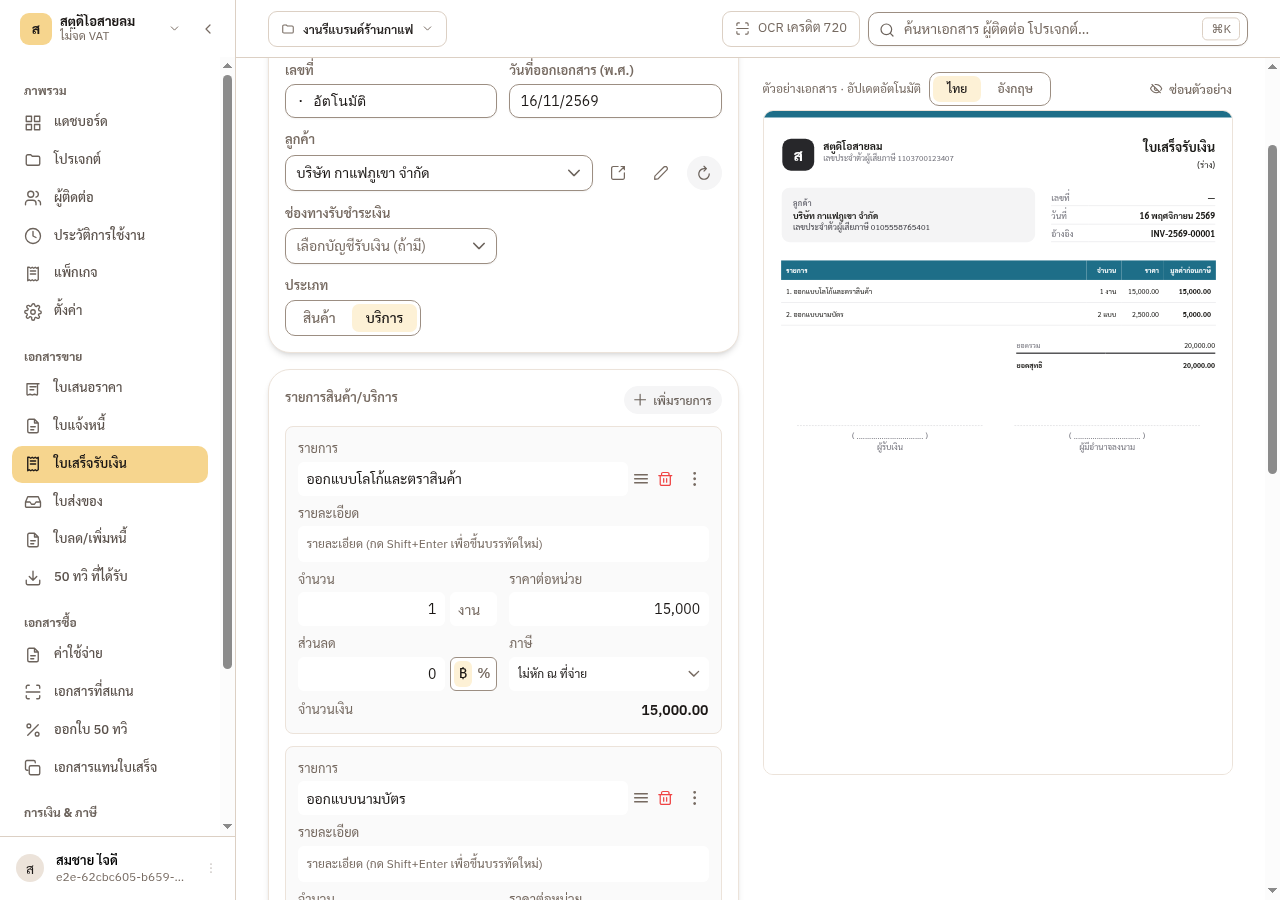
Open the invoice and press สร้างใบเสร็จ.
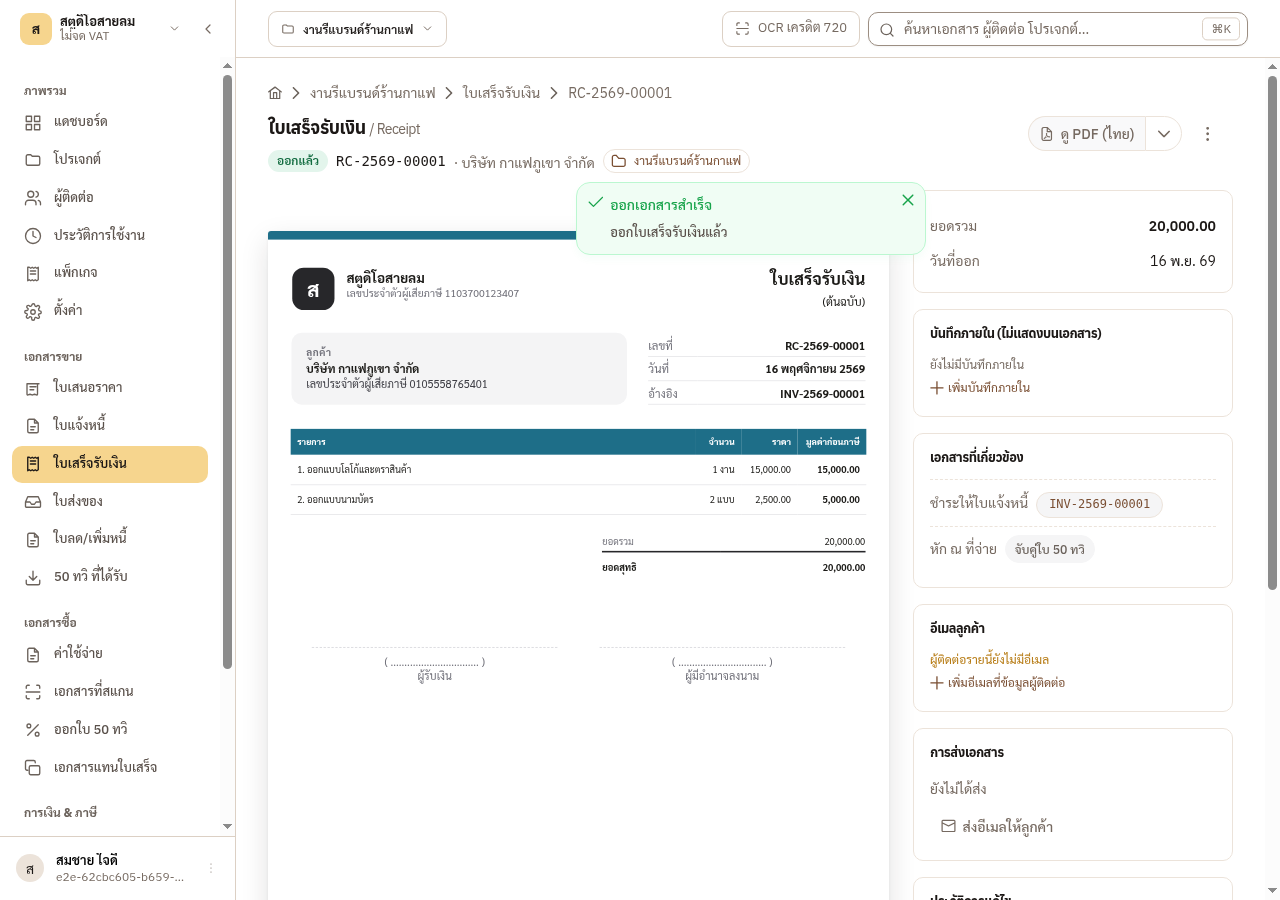
→ You should see: You get a draft receipt that copies the invoice’s lines and its full amount.
-
Check the amount, then press บันทึกและออกเอกสาร.
→ You should see: The receipt gets a number such as RC-2569-00001, and the invoice turns ชำระแล้ว on its own.
When the customer pays only part
Section titled “When the customer pays only part”A receipt made from an invoice starts with the full amount. If the customer pays only part, change the price of the lines on the draft receipt to the amount received before you issue it. The invoice then shows ชำระบางส่วน with a balance left. EZer refuses a receipt larger than the outstanding balance.
EZer works out the paid status from receipts that are issued and not cancelled. A draft receipt does not count. เกินกำหนดชำระ shows once the due date has passed and money is still owed. Due today is not yet overdue.
EZer does not check that the money reached your account. The receipt is your own statement, so issue it only once you have been paid.
5.5 Send the document to your customer
Section titled “5.5 Send the document to your customer”Issuing a document does not deliver it. EZer gives you two ways to get it to the customer.
- Download the PDF. Press ดู PDF on the document page, choose Thai, English or bilingual, and send the file through whatever channel you already use.
- Send an email from EZer. Press ส่งอีเมลให้ลูกค้า. EZer attaches the PDF and adds links that work for 30 days. The button works once the document is issued and has a customer. Only the manager and sales can use it. If an admin has not bound the business mailbox, the send window says so.
-
Check the recipient and the wording EZer wrote for you, then press ส่งอีเมล.
→ You should see: An email that has left EZer cannot be recalled, so check the address first.
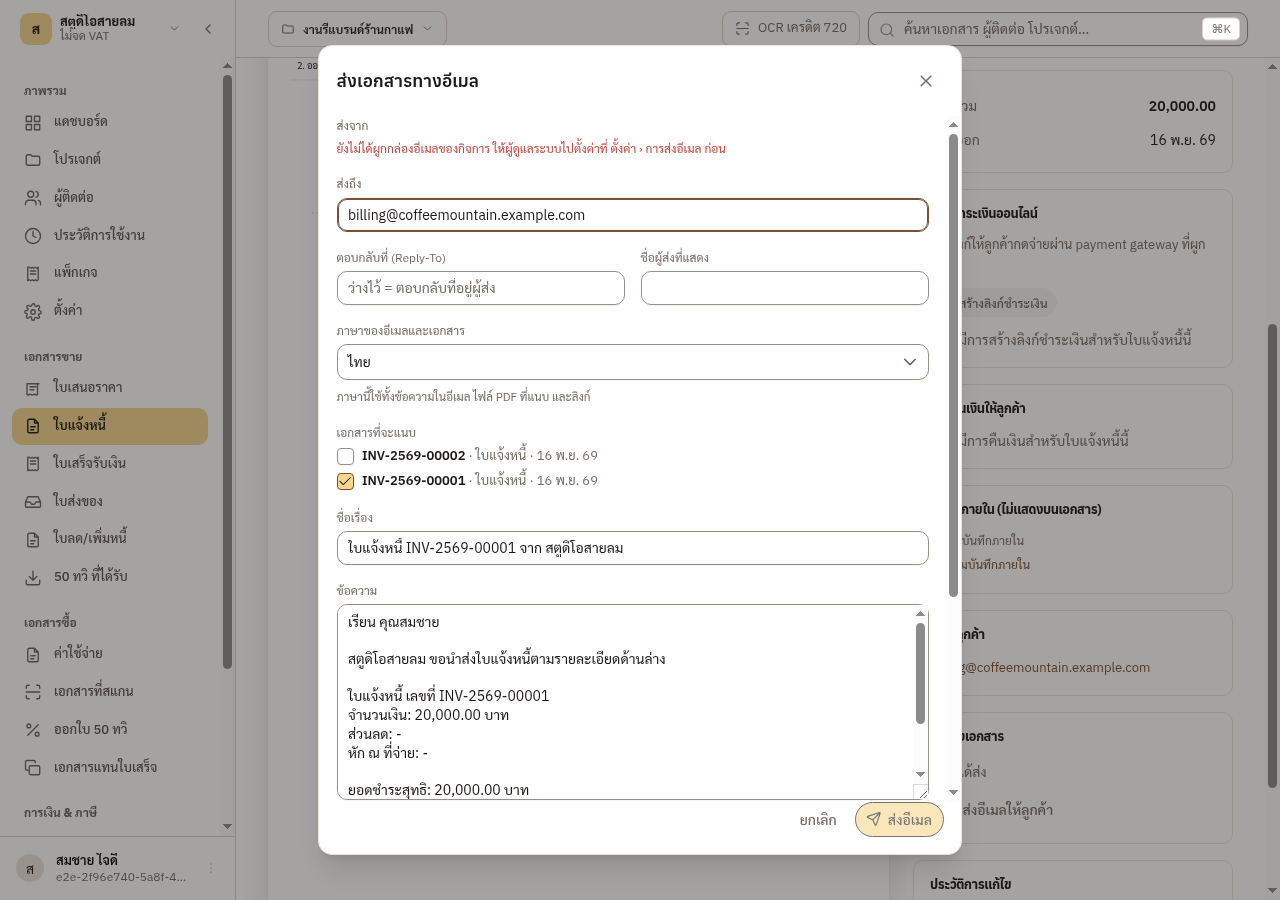
The การส่งเอกสาร card on the document page records where the document went. It does not confirm that the recipient received it.
5.6 Edit an issued document, and when it locks
Section titled “5.6 Edit an issued document, and when it locks”An issued document stays editable under the same number. Press แก้ไข. The main button now reads บันทึก, which saves over the old version and does not issue again. If you issued by mistake, use ดึงกลับเป็นร่าง to return it to a draft that keeps its number. This works until it is locked and while no issued document refers to it, such as a receipt of the invoice or an invoice of the quotation.
You can edit until the document locks. Two things lock it: pressing ล็อกเอกสารนี้ on that document (the manager and the auditor only; other roles may see the button but EZer refuses them; quotations have no such button), or closing the month, which locks every record of that month at once.
One more partial lock: once an issued receipt refers to an invoice (even a part payment), the fields about amounts cannot change, but the item names and details still can.
If you no longer want a document and it is not yet locked, use ยกเลิกเอกสาร. A cancelled invoice cannot get a new receipt, and if a receipt is already issued, deal with that receipt first. Its number is kept and never reused. If you must issue it again, EZer gives a new number.